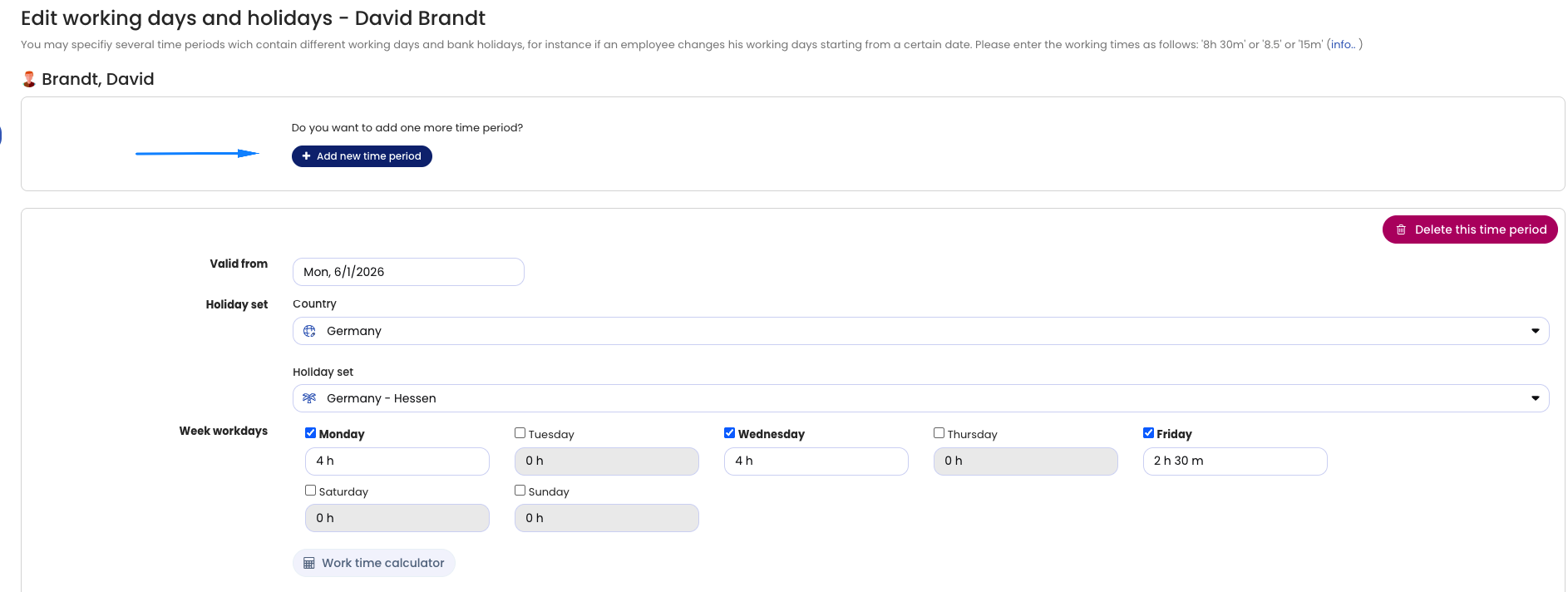
In Timebutler, you can schedule an employee to switch their working time model on a specific date with just a few clicks. This is useful, for example, in the following cases:
- The employee changes their weekly working days (for example: “Until May 14, weekly working days Monday to Friday; from May 15, Monday to Thursday only”).
- The employee changes their target working time, for example due to a reduction in working hours.
- The employee changes location and different public holidays apply to them from a certain date.
- Due to a change in the employment contract, new rules apply from a specific date for capping overtime, the rounding of working times, or setup times.
Add a change
To set the working time model to change on a specific date, follow these steps:
Log in to Timebutler as an admin and click Settings > Working days at the bottom left. For the desired employee, click the Edit button. Now click the blue Add new period button. At the top, in the Valid from: field, enter the date from which the change should apply. In the upper area, make the settings for weekly working days, target working time, public holidays, and so on, that should apply from the specified date.
Then click the blue Save button at the bottom.
That’s it. You now see the overview of weekly working days again, and for the employee you just changed, you now see multiple periods. In the background, Timebutler has recalculated all vacation requests, absence entries, and the vacation and working time accounts of the employee.
Create multiple periods The process described above adds only one new period. You can, of course, still create multiple periods. To do so, create a new period as described above. Then repeat the process and create another new period, again as described above.
Make the change for multiple employees
If you want to add or change a working time model for several employees, you do not have to make the adjustment for each person individually. Instead, you can do it conveniently via the bulk change of working time models.
Note: with the exception of public holidays, the bulk change is possible for all working time model settings.
Screenshot: Add a new period for a working time model