
To create the accrual for unused vacation, you need to determine how many vacation days employees still have available as of a specific month. Proceed as follows:
1) Open vacation contingent
Sign in to Timebutler as an admin or manager and click Employees > Absences > Vacation contingent at the top left.
2) Limit to month
On the page, click the green Show filter button at the top right. You will find the Until month option here, which lets you limit up to which month the vacation requests should be included.
You have two options:
Option Requests strictly to the month end of -month-: For example, if you set the option Requests strictly to the month end of April, only the vacation days from January through the end of April are included. Vacation days that fall in May or later are ignored. With this filter setting you can calculate the vacation contingent month-accurately.
Option Requests starting before end of -month-: For example, if you set the option Requests starting before end of April, the system includes in full all vacation requests that start between January and April — even if they extend into May. A vacation request that starts in April and extends into May is still included with the total number of vacation days, including the days that fall in May.
After you select the appropriate option for the desired month, click the Apply button to apply the filter.
3) Download report
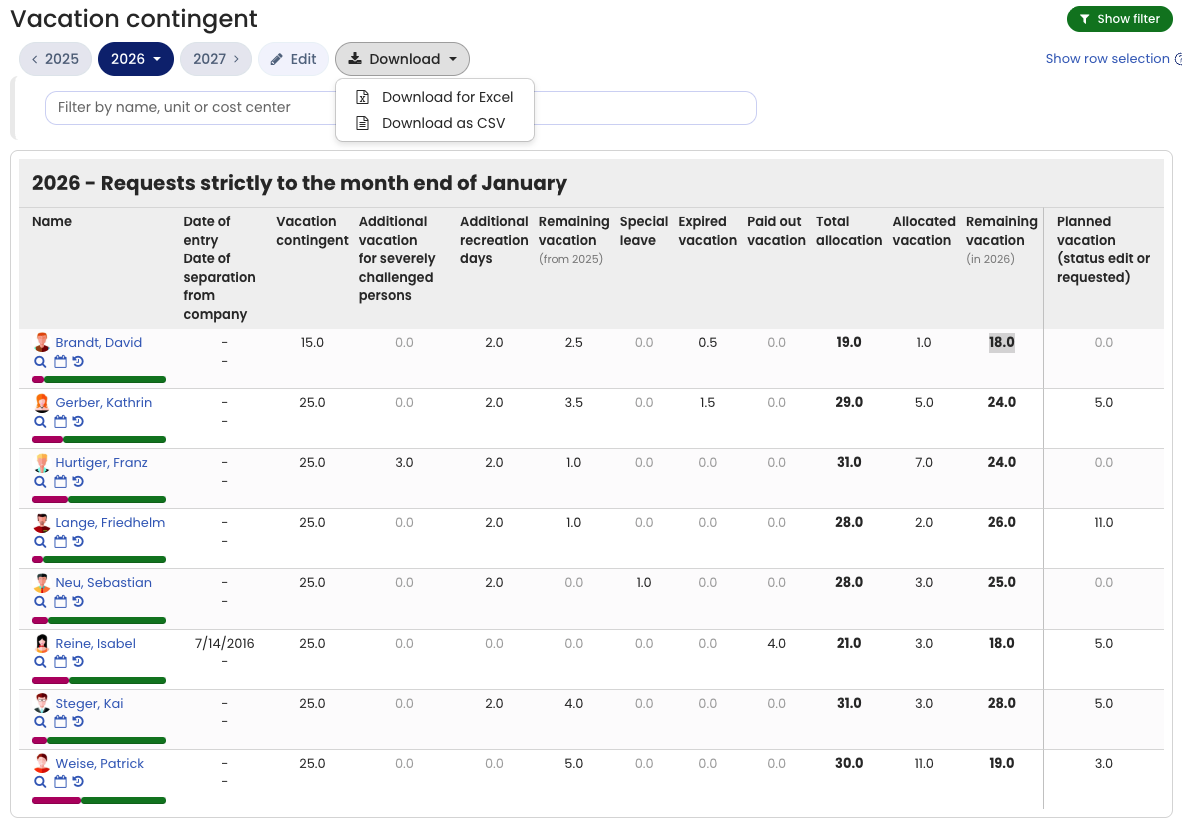
The page reloads and now shows the vacation contingent, considering only those vacation requests you set in the filter, for example only the vacation requests that start no later than June. In the Remaining vacation column you can now see how many vacation days the employees still have left afterwards, i.e., in the example from July.
4) Download
You can now download this data with one click on the Download button as an Excel file or CSV file and, for example, forward it to the tax advisor or the payroll office.
Note:
For example, if you choose the filter setting Requests starting before end of June, a vacation request that starts on 6/25 and ends on 7/5 is counted in full, including the days that fall in July. This is intentional: for vacation requests that begin within the review period, you usually do not need to create an accrual for the entire number of days of the vacation request.
If you still want a month-accurate calculation, select the option Requests strictly to the month end of June.
Month-accurate analysis also in the employee utilization report
You can also get a month-accurate analysis of vacation days in the cumulative employee utilization report as follows:
On the left, click Reports > Employee utilization and set the desired period, for example January to June. For Report type select the Cumulative option and enable the option Show columns for all absence types, even if no entry exists.. Then click the Show button. In the Vacation column you now see the exact number of approved vacation days for the selected period. You can also download this report as an Excel file with a single click.