
The calendar view of absence entries provides a clear overview of employee absences. Depending on your needs, the calendar can be displayed:
In addition to the calendar view, absence entries can also be displayed in a list view. The list view allows you to:
- Filter the displayed entries
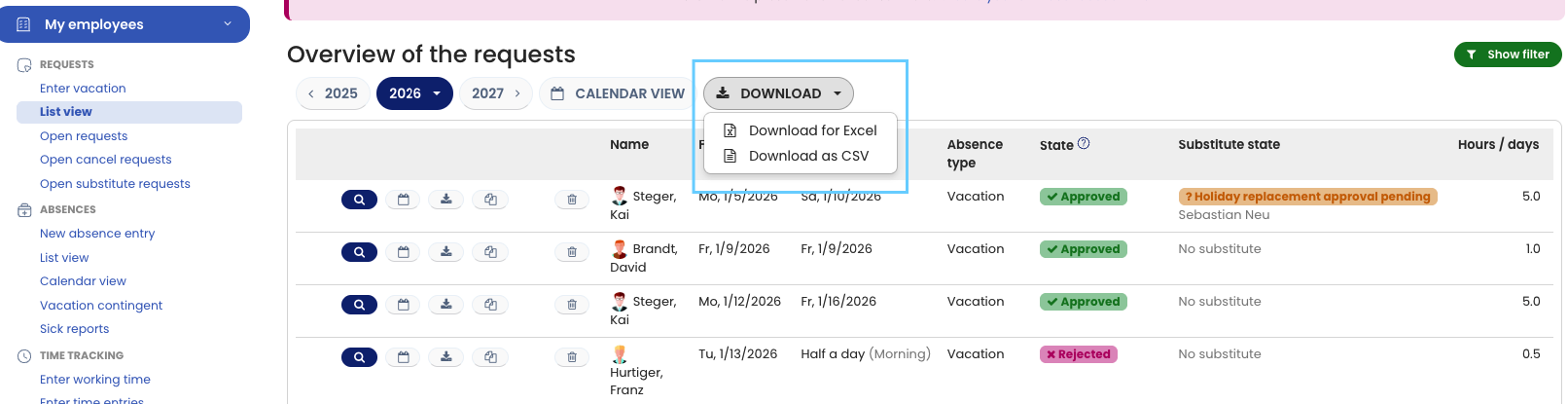
- Download the absence data
Accessing the List View of Absence Entries
How you access the list view depends on your user role.
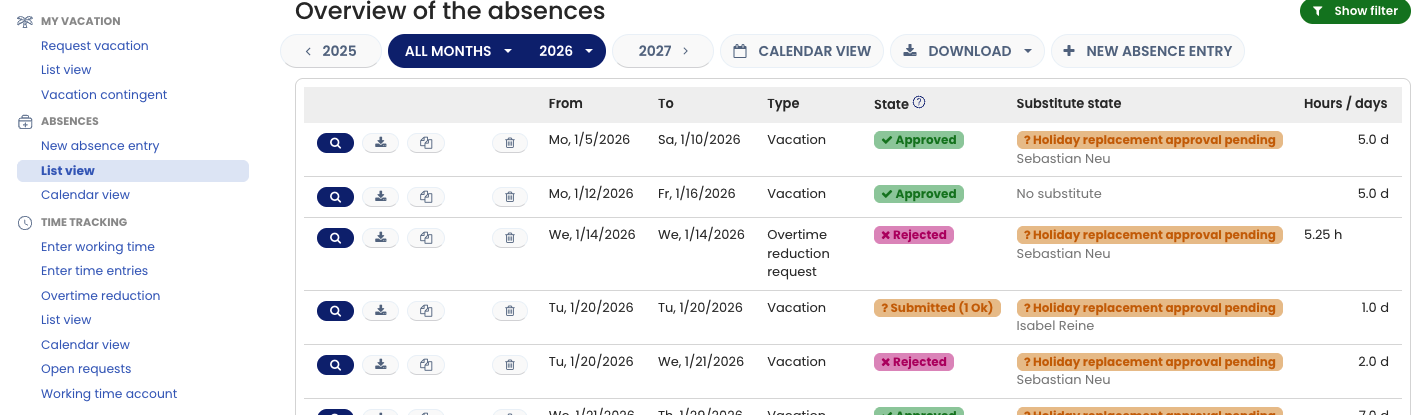
Accessing the List View as an Employee
- Log in to Timebutler as an employee user.
- In the left-hand navigation, under “Absences,” click “List View.”
Screenshot: Employee Absence List View
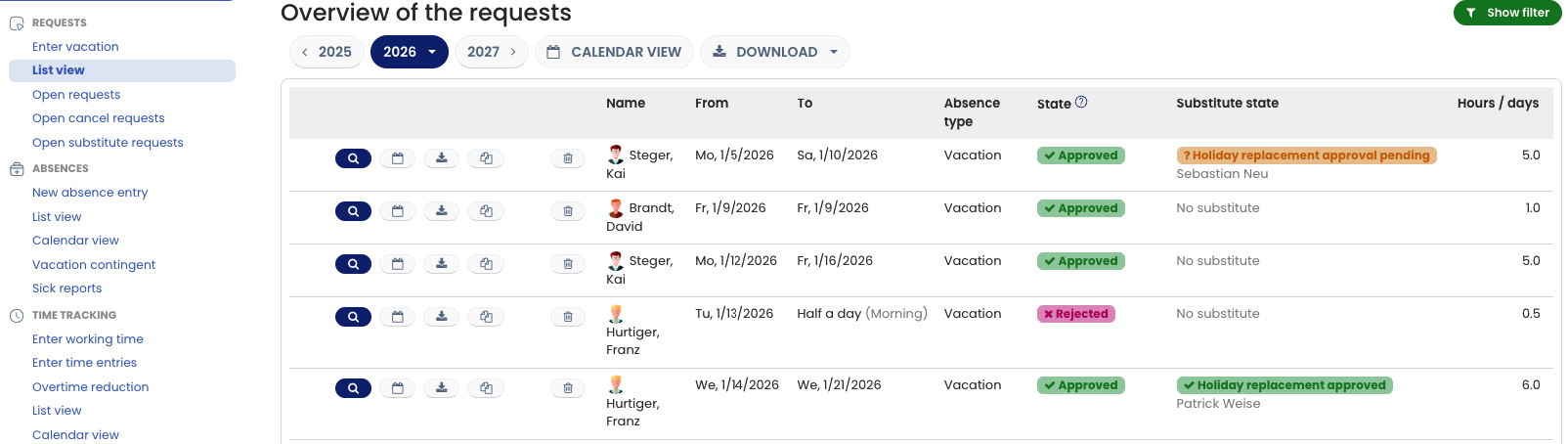
Accessing the List View as an Admin or Supervisor
- Log in to Timebutler as an admin or supervisor.
- In the top-left navigation, click “Employees.”
- Under “Absences,” click “List View.”
Screenshot: Admin Absence List View
You can also download your team’s absences in this screen, as shown here:
Screenshot: Download absence entries in the list view
Viewing Only Your Own Absence Entries
If you want to view only your own absence entries:
- Click “My Data” in the left-hand navigation.
- Under “Absences,” click “List View.”