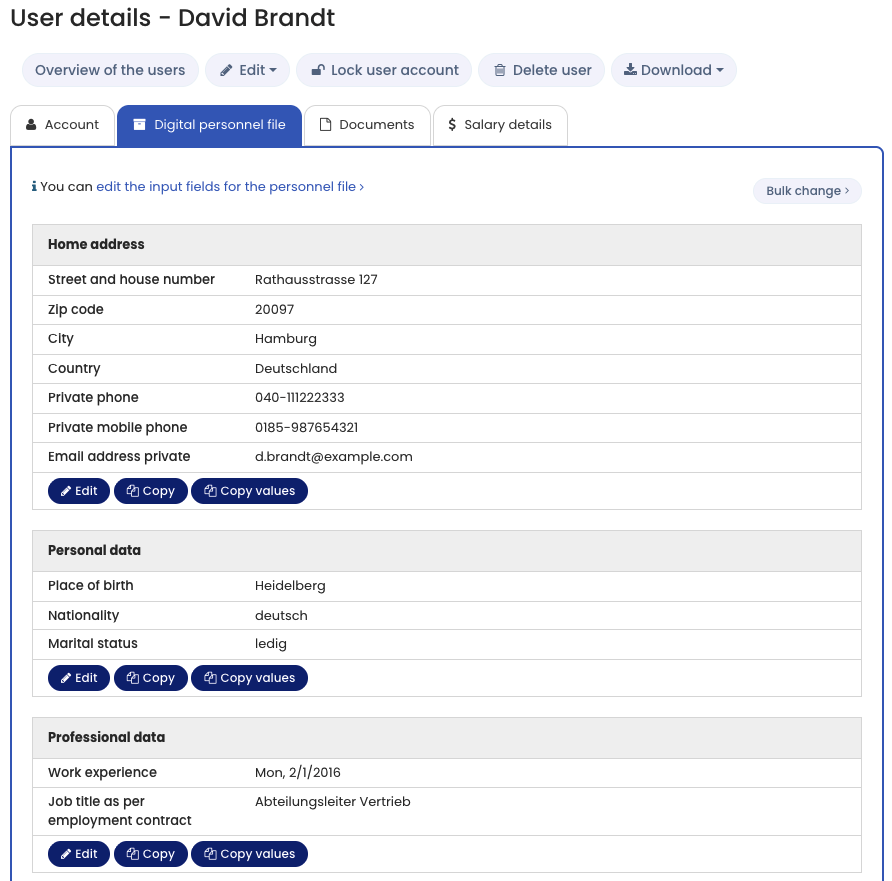
If you have the appropriate Viewing and editing permissions, you can edit data in the Digital Personnel File and Salary data as described below.
Edit a Digital Personnel File
- Log in to Timebutler as an Admin.
- Go to Employees > Overview.
- Click the blue magnifying glass icon next to the desired user account to open the Detail view.
- Open the Personnel file or Salary data tab.
To edit the data:
- Click Edit to modify existing entries.
- Click Add entry to create a new entry.
- Use the available buttons to edit or delete existing salary entries.
If one or both tabs are not visible:
- You do not have viewing rights for the data, or
- An Admin has deactivated the Digital Personnel File or Salary data.
See:
Activate the Digital Personnel File
View Your Own Digital Personnel File
If you have the required viewing rights, you can access your own data:
- Log in to your Timebutler user account.
- Go to Settings > My Account > My Profile.
- Open the Personnel file or Salary data tab.
If the tabs are not visible, you either do not have viewing rights or the feature has been deactivated by an Admin.
Related Topics
Screenshot