
Timebutler does not automatically transfer the overtime balance and remaining vacation to the next year. You can do this with a few clicks, without any manual calculation.
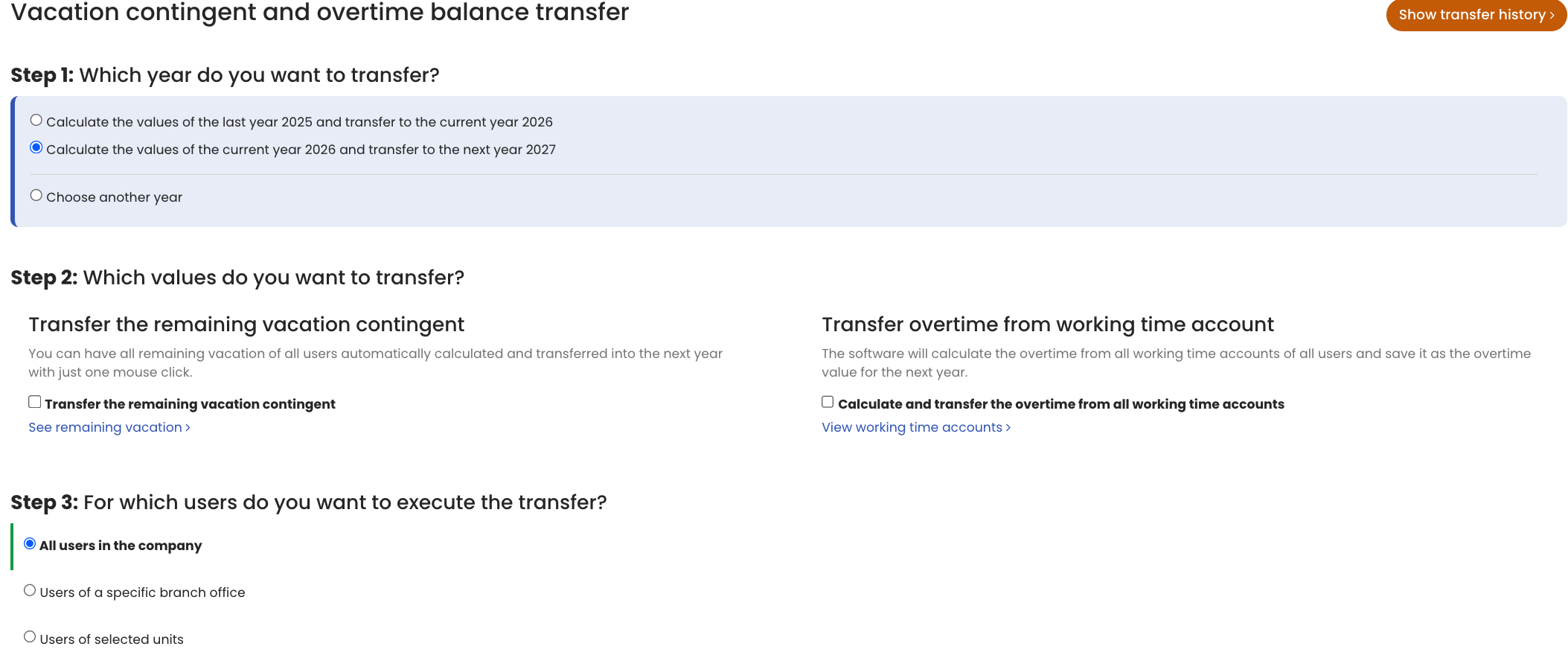
Log in to Timebutler as an admin, click Settings in the bottom left, then More… below it. Click Vacation contingent and overtime balance transfer on the right.
You can run the transfer as many times as needed. For example, you can transfer remaining vacation in November or December, and again at the start of the year once vacation planning for the previous year is complete. At the beginning of the year, you should transfer both remaining vacation and the overtime balance from the previous year into the current year.
Timebutler will automatically remind you of the transfers at the start of the year.
Screenshot: Selection for transferring remaining vacation
Transfer history
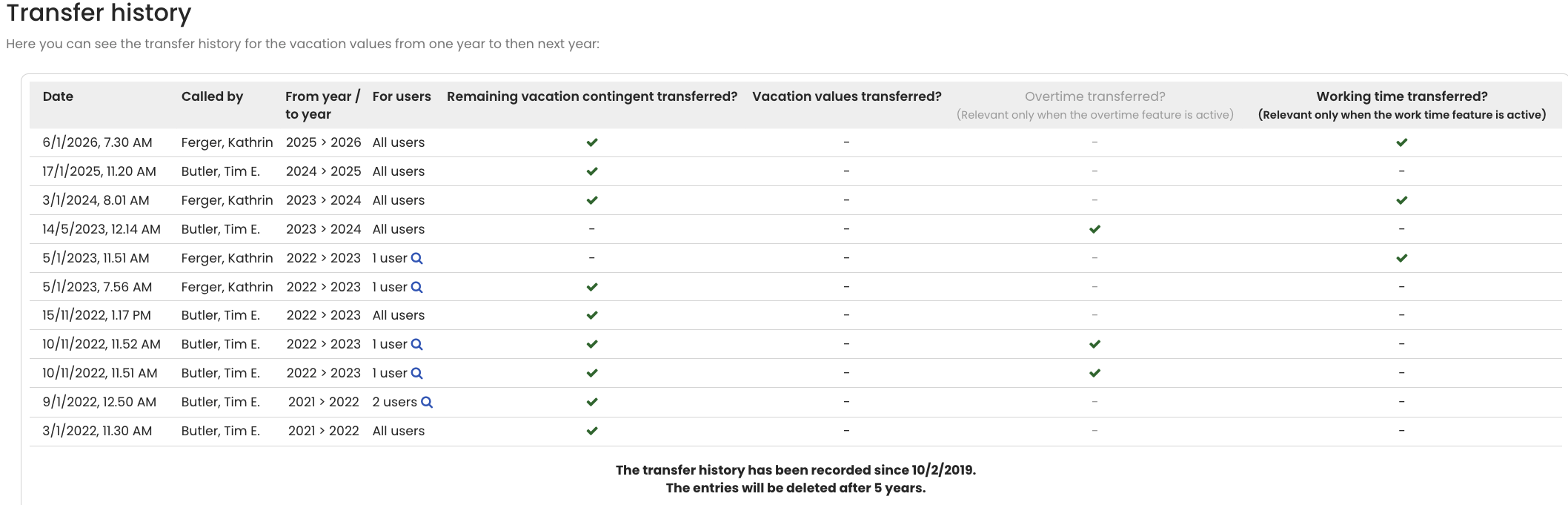
You can check at any time when the transfer of remaining vacation and overtime was last run. Log in as an admin, click Settings in the bottom left, then More… below it. Click Vacation contingent and overtime balance transfer on the right, then click Show transfer history in the top right of the page.
Screenshot: Transfer history
Edit history
Timebutler also logs changes to vacation entitlement data and time balances (overtime, starting balance of the overtime credit) in the Change history of entitlement data.