
If you provide the time recording terminal on a tablet for your team, employees can conveniently record their working times. To log in to the time recording terminal, employees enter their 4-digit PIN.
Where do employees find the PIN?
You can retrieve your PIN by logging in to your Timebutler user account and then clicking Settings > Security at the bottom left. Click Show PIN to display it.
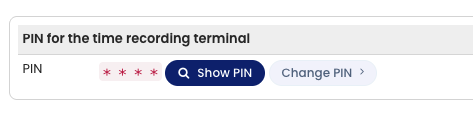
Important: the PIN is only shown if time tracking is enabled for you.
Change the PIN
You can set your preferred PIN. To do this, open the PIN page described above and click the Change PIN button. Enter a four-digit PIN, or use Create random PIN, then click Save PIN.
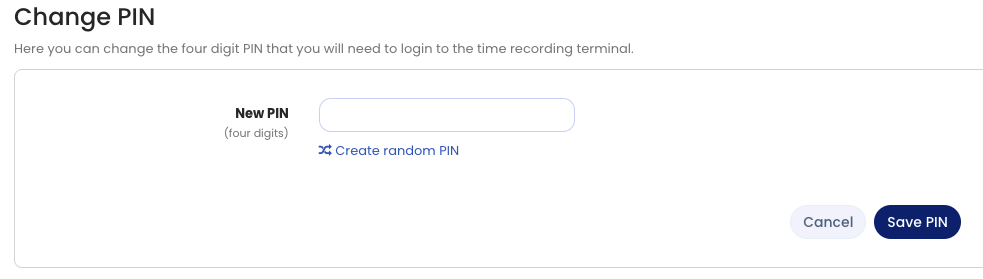
The same applies here: the PIN is only shown if time tracking is enabled for you.
Rules for the PIN
Admins can set rules for the PIN so that employees cannot, for example, choose a simple numeric sequence as their PIN. To change the setting, log in to Timebutler as an admin, click Settings > More… at the bottom left, then Global settings on the right. There you find the Rules for the PIN at the time recording terminal option.
Employees without an email address
To retrieve the PIN, employees must log in to their Timebutler user account. For this, they need the login details they received by email at the start. Some employees do not have an email address stored in their user account and therefore cannot log in. Read here how to proceed for employees without an email address.