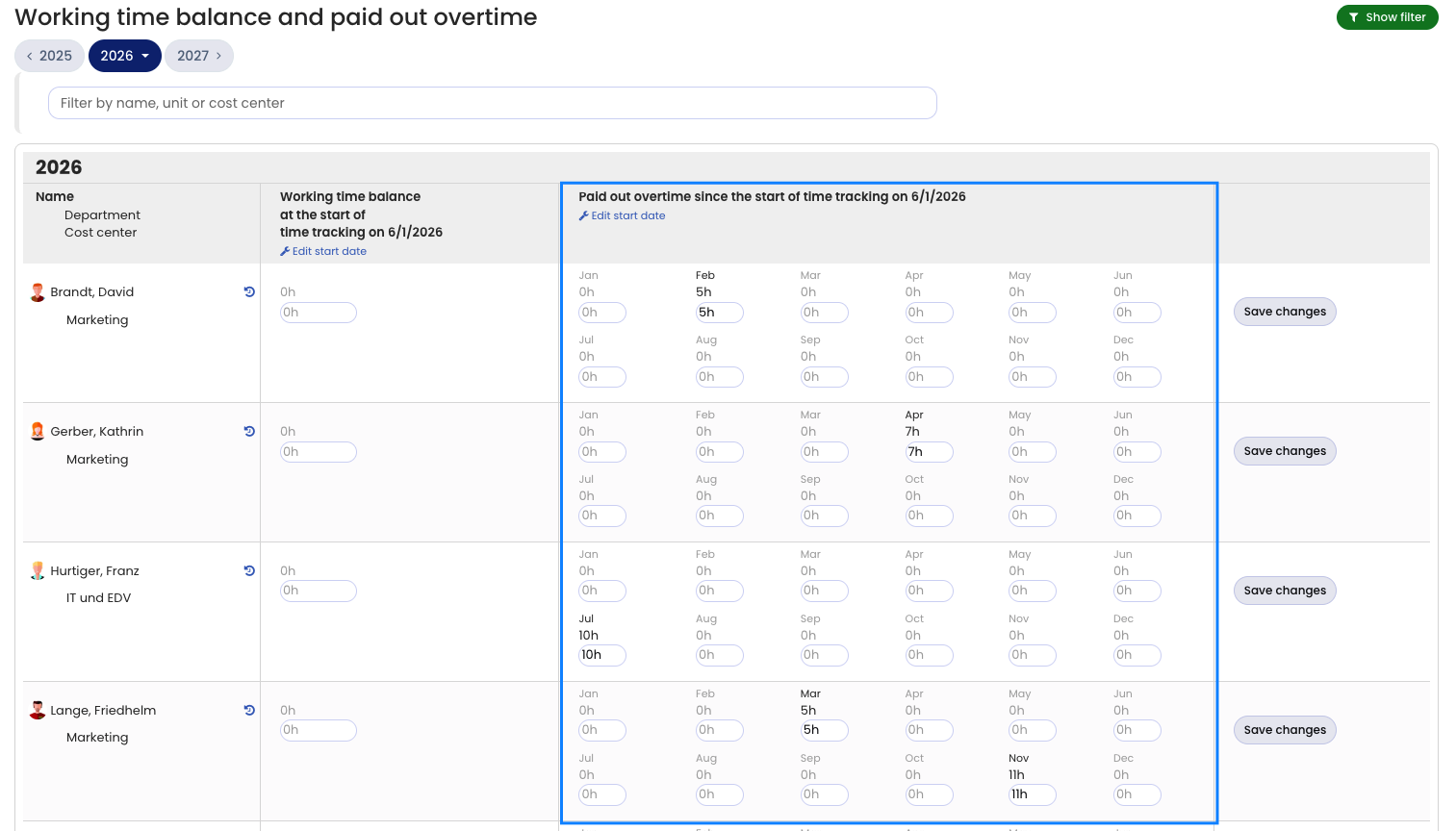
Once you have paid out overtime to an employee, record it in Timebutler as follows:
- Sign in to Timebutler as an admin and click Settings > Working time balance at the bottom left.
- In the affected employee’s row, go to the relevant month and increase the value under Paid out overtime by the number of hours you paid out.
- Click the blue Save changes button on the right of the row.
The value is a running total for the month, so always enter the new total rather than only the latest amount:
- If March shows 0 h and you paid out 40 hours in March, enter 40.
- If March already shows 15 h and you pay out another 20 hours, enter 35.
Timebutler applies the change immediately in the employee’s working time account and reduces the overtime balance.
Edit history
Timebutler logs every entry and change to paid-out overtime in the change history of leave entitlement.
Paid out overtime in the Overtime feature
If you have activated the Overtime feature instead of time tracking, read here how to enter paid out overtime in the Overtime feature.
Recording paid out overtime (time tracking)