
You can set the working time model individually for each employee. If you want to change the working time models for a large number of employees at once, the easiest way is the bulk change of working time models. This saves you the effort of editing each employee’s working time model one by one.
Log in to Timebutler as an admin and click Settings at the bottom left, then More… below it. Click Bulk change of user accounts on the right. In the Working time model box, you will find the options for the bulk change.
Bulk change of user accounts
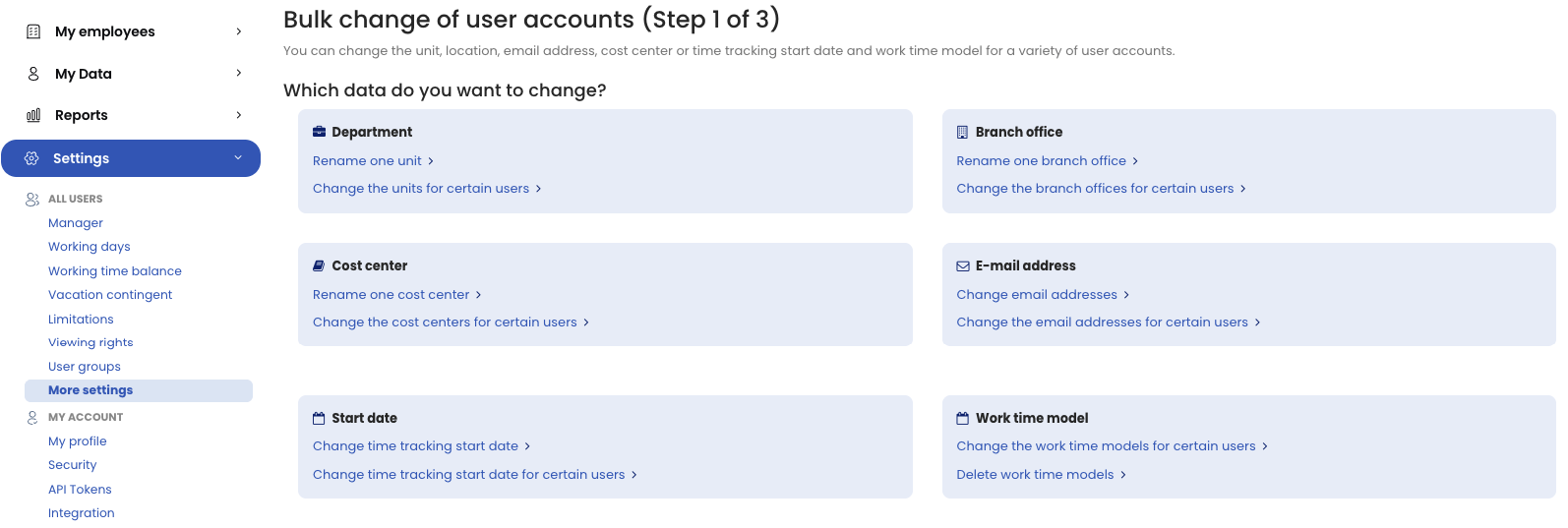
Change the working time model for specific users
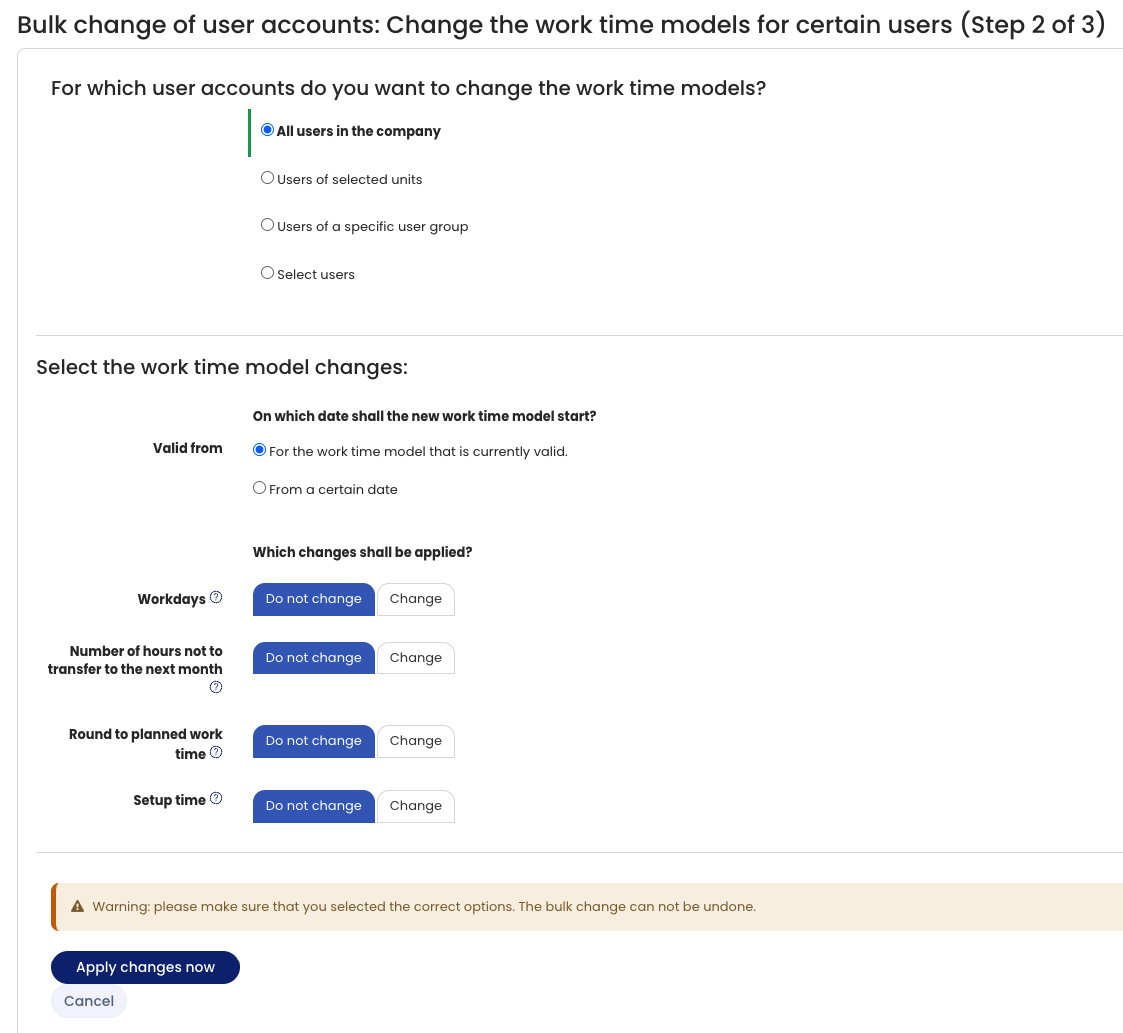
When you click the Change working time models for specific users link in the box mentioned above, you can first choose on the next page which employees you want to change the working time model for.
Then choose from which date the changes to the working time model should apply. You can select a specific date from which the new rules for the working time model apply, or select the option For the working time model that is currently valid for the respective employee. — Timebutler then adjusts the currently valid working time model (also retroactively, from the start of that working time model).
Next, choose which settings to change. Only the selected settings change; the remaining options stay unchanged. Click the Apply change now button to apply the changes to the working time models of the selected employees. Timebutler automatically recalculates all absence entries, working time accounts, and vacation balances of the employees. It can therefore take a few seconds until the change has been applied.
Bulk change of time model
Example
You want to set for the employees at the Hamburg location that, starting in May, up to 10 overtime hours per month are compensated with the salary and capped. To do this, open the bulk change of the working time model, select the Hamburg location, and set the date to April 1. For the option Number of overtime hours compensated per month, click the Change button and set that 10 overtime hours are compensated. Then click Apply change now.
Timebutler now creates a new working time model for the employees in Hamburg that applies from April 1 and caps up to 10 overtime hours. All other settings, such as working days per week, public holiday rules, target working time, setup times, and so on, remain unchanged, so the same rules as before the change apply.
Delete working time models
When you click the Delete working time models link in the box mentioned above, you can first choose on the next page which employees you want to delete the working time model for. At Start date of the working time model, you can set a date: for employees who have a working time model with this start date, Timebutler deletes that working time model. It then extends the previous working time model to the end of the deleted working time model.
Bulk delete of time model
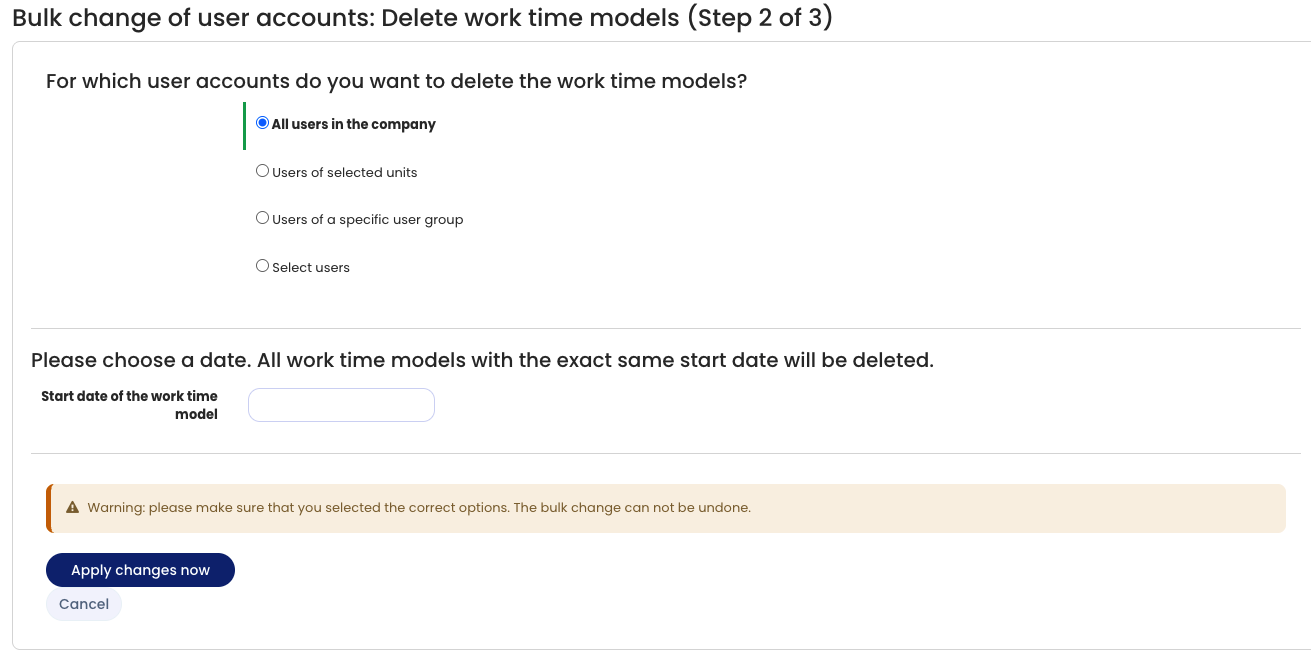
Example You created a new working time model via the bulk change of working time models for all employees in Munich that is valid from April 1. However, you made a mistake with the date; the working time model should actually be valid only from May 1. You can then delete the working time models starting on April 1 for those employees.
Example An employee has working time models for the following periods:
- Working time model 1: from the start to May 31
- Working time model 2: from June 1 to August 31
- Working time model 3: from September 1 with no end date
You open the bulk change and set that the working time models starting on June 1 should be deleted. This deletes working time model 2 for the employee. Working time model 1 is then valid from the start to August 31.