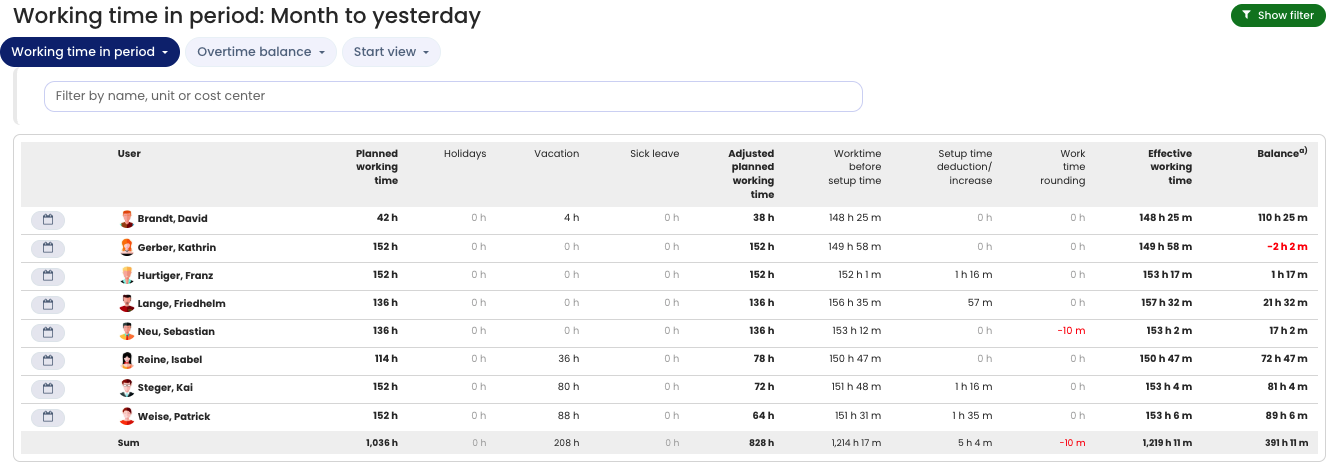
Timebutler keeps a working time account for every employee for whom time tracking is enabled. This way, all employees always have an overview of the required working time (target working time), the hours worked, any deductions and carryovers, and thus the overtime balance for any date.
In the working time account, Timebutler calculates the target working times based on the individual target working times of the employee’s weekly working days, taking public holidays, vacation, sickness, and other absences into account. This results in the adjusted target working time. The sum of the entered time entries results in the hours worked. Timebutler also applies the settings for capping overtime, rounding of working times, and setup times. This results in the working time balance.
Access the working time account
To open the working time accounts view, log in to Timebutler and click at the top left on Employees > Time tracking > Working time accounts. Employee users click on the left on Time tracking > Working time accounts.
Note: An admin can set that employee users, managers, or admins are not allowed to access the working time account. If you do not see the links to the working time account mentioned above, an admin has disabled the display of working time accounts for your user type.
The working time account has two views.
1) Working time balance in the period
In the Working time balance in the period view, you can see how many hours were worked in a specific period. It does not include carryovers or the capping of overtime between months and years; it only shows the hours worked in the selected period.
To open the Working time balance in the period view, open the working time account (see above) and then click the Working time in the period button.
2) Overtime balance as of the cut-off date
In the Overtime balance as of the cut-off date view, you can see the employees’ overtime balance for any date. Timebutler includes all historical data as well as the capping of overtime, rounding, setup times, and other reductions.
To open the Overtime balance as of the cut-off date view, open the working time account (see above) and then click the Overtime balance as of the cut-off date button.
Change the start view
You can set which of the two views appears first when you open the working time account. Open the working time account and click the Start view button.
The working time account