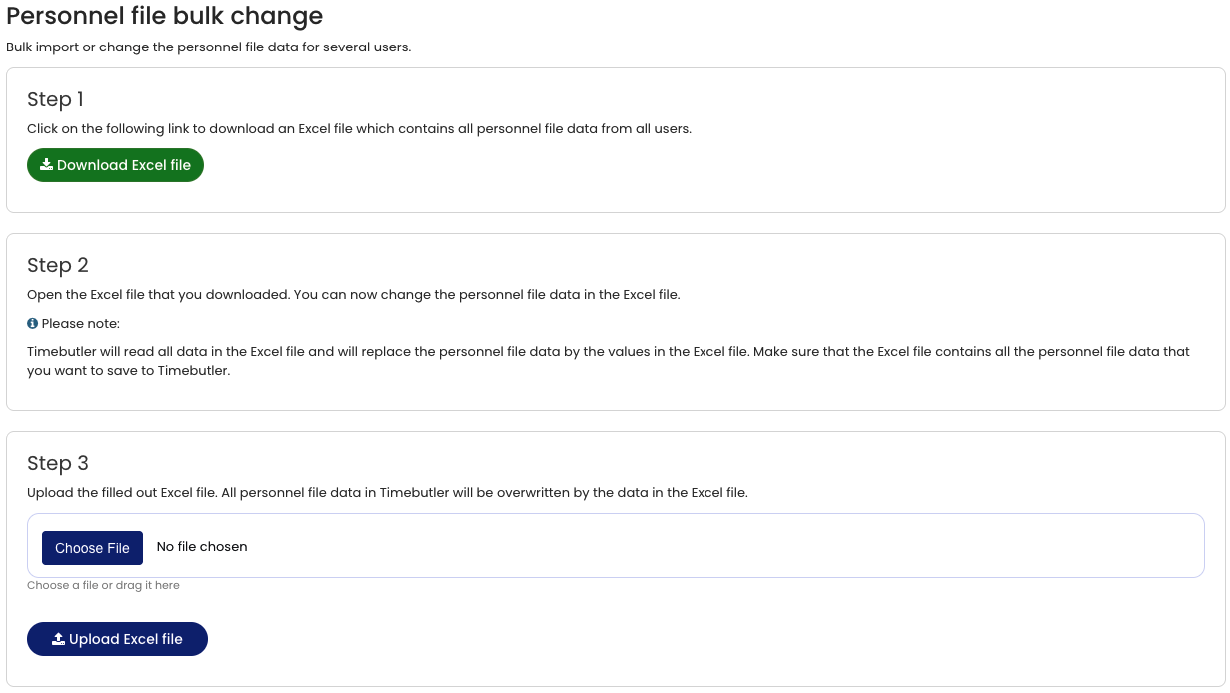
You can edit the Digital Personnel File of individual employees.
If you want to update the data of multiple employees at once, use the bulk edit function.
Only Admins have permission to perform bulk edits.
Open the Bulk Edit Function
- Log in to Timebutler as an Admin.
- Go to Settings > More… > Digital Personnel File Bulk Change.
Step 1: Download the Excel File
Download the Excel file containing all data from the Digital Personnel Files of all employees.
Step 2: Edit the File
- Open the Excel file.
- Edit the data as required.
- Save the file.
Step 3: Upload the Updated File
- Upload the completed Excel file in step 3.
- The data in the Digital Personnel Files will be overwritten with the values from the uploaded file.
Important
All fields of all Digital Personnel Files are overwritten with the values in the uploaded Excel file. After uploading, only the data contained in the Excel file will remain in the Digital Personnel Files.
Ensure that the Excel file contains all required data before uploading it.
If you upload an empty or incorrect file, Timebutler displays an error message and does not delete any existing data.
Screenshot