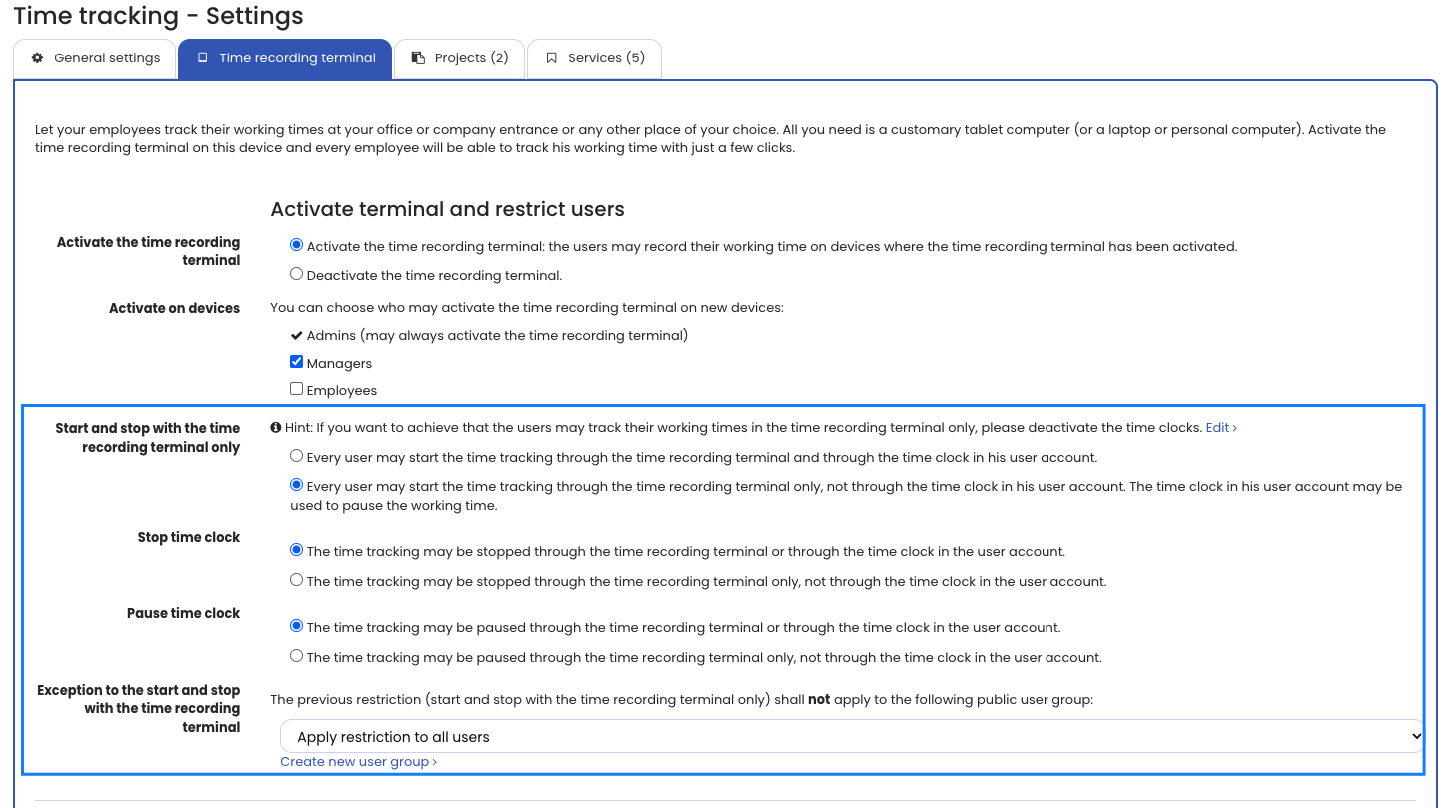
You can specify that certain employees may only start the time clock at the time recording terminal (and, if desired, only stop it there as well). You can also specify that certain employees may additionally start and stop the time clock in their personal user account, not only at the time recording terminal.
This ensures that certain employees can only clock working time when they are on-site at the office or the company — and that other employees may also operate the time clock on the go via smartphone or a laptop/PC, for example because they work in the field or from home.
Proceed as follows:
Log in to Timebutler as an admin and click Settings > User groups at the bottom left. Click the Create new user group button and create a new shared user group named Time clock allowed (or similar). Add to this new user group all employees who should not clock only via the time recording terminal, but may also clock via the virtual time clock.
Then click Settings > More… at the bottom left, then Time tracking on the right, then the Time recording terminal tab. Enable the Start and end only in the time recording terminal option. The option to specify that stopping, too, is only allowed at the time recording terminal then appears — you can enable or disable it. The Exception for start and end in the time recording terminal option also appears. Select the Time clock allowed user group you created earlier. Then click the Save button. That is all.
For employees to use the time clock in their own user account, the time clock must be enabled. To do this, log in to Timebutler as an admin and click Settings > More… at the bottom left, then Time tracking on the right. Make sure the Time clock option is enabled. If needed, save the change by clicking the blue Save button at the bottom of the page.
Note: The time clock in the user account is visible to all users with time tracking enabled. If someone who may only clock at the time recording terminal tries to start the time clock in the user account, an appropriate error message appears and refers them to the time recording terminal.
Clocking breaks
You can always clock breaks in the user account, regardless of the time recording terminal setting. Breaks reduce working time, so employees should always be able to clock breaks completely. Another reason to allow clocking breaks: if clocking were only possible at the time recording terminal on the tablet, a break could only begin and end at the tablet. But employees do not always start and end their breaks right in front of the time recording terminal.
Tip: If the newly created user group is not shown for selection, you saved it as a personal user group, not as a shared user group. Go back to the edit screen for user groups (
Settings>User groupsat the bottom left), edit the user group, and change it toShared user group.