
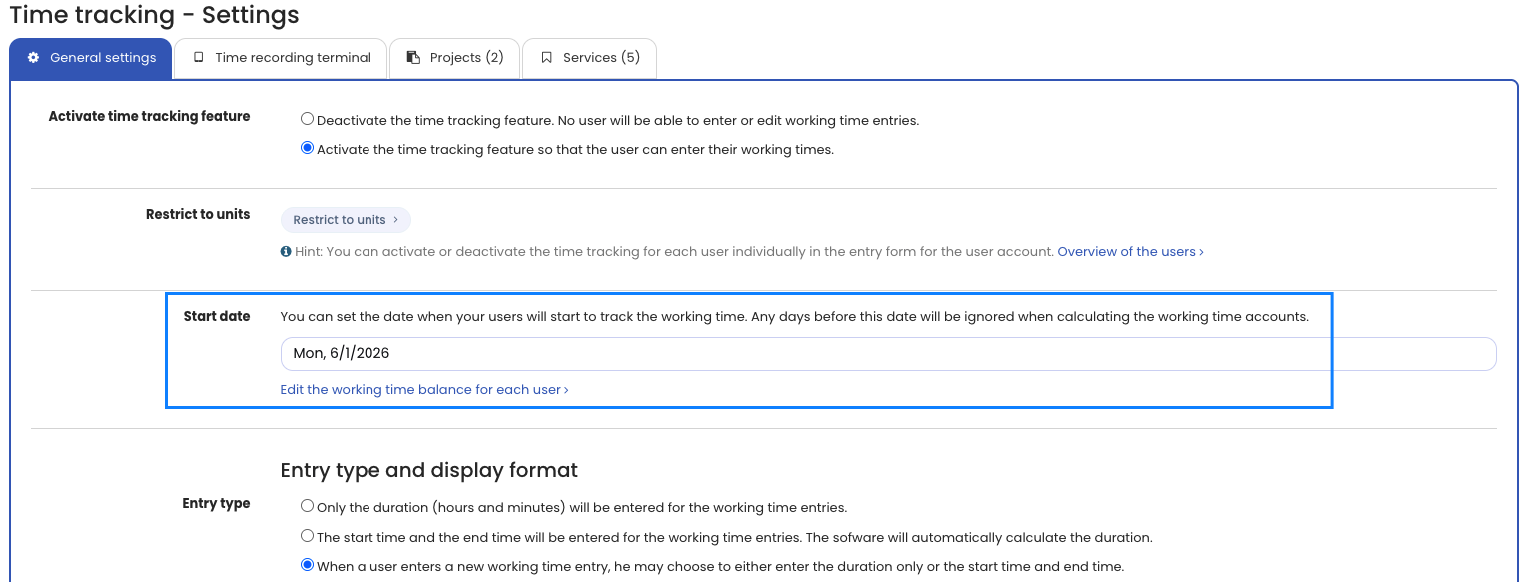
As an admin, you can set the start date of time tracking. This matters so that Timebutler calculates the working time balance only from that date and ignores the days before it. Without a start date, employees can end up with a large negative balance in the working time account.
Set the start of time tracking
- Sign in to Timebutler as an admin and click Settings > More.. > Time tracking (bottom left, then on the right).
- Change the Start of time tracking option.
- Click the blue Save button at the bottom of the page.
Note: The start date set here applies to all employees, except those who have a different start date set in their user account (see below).
The change takes effect immediately in the working time account.
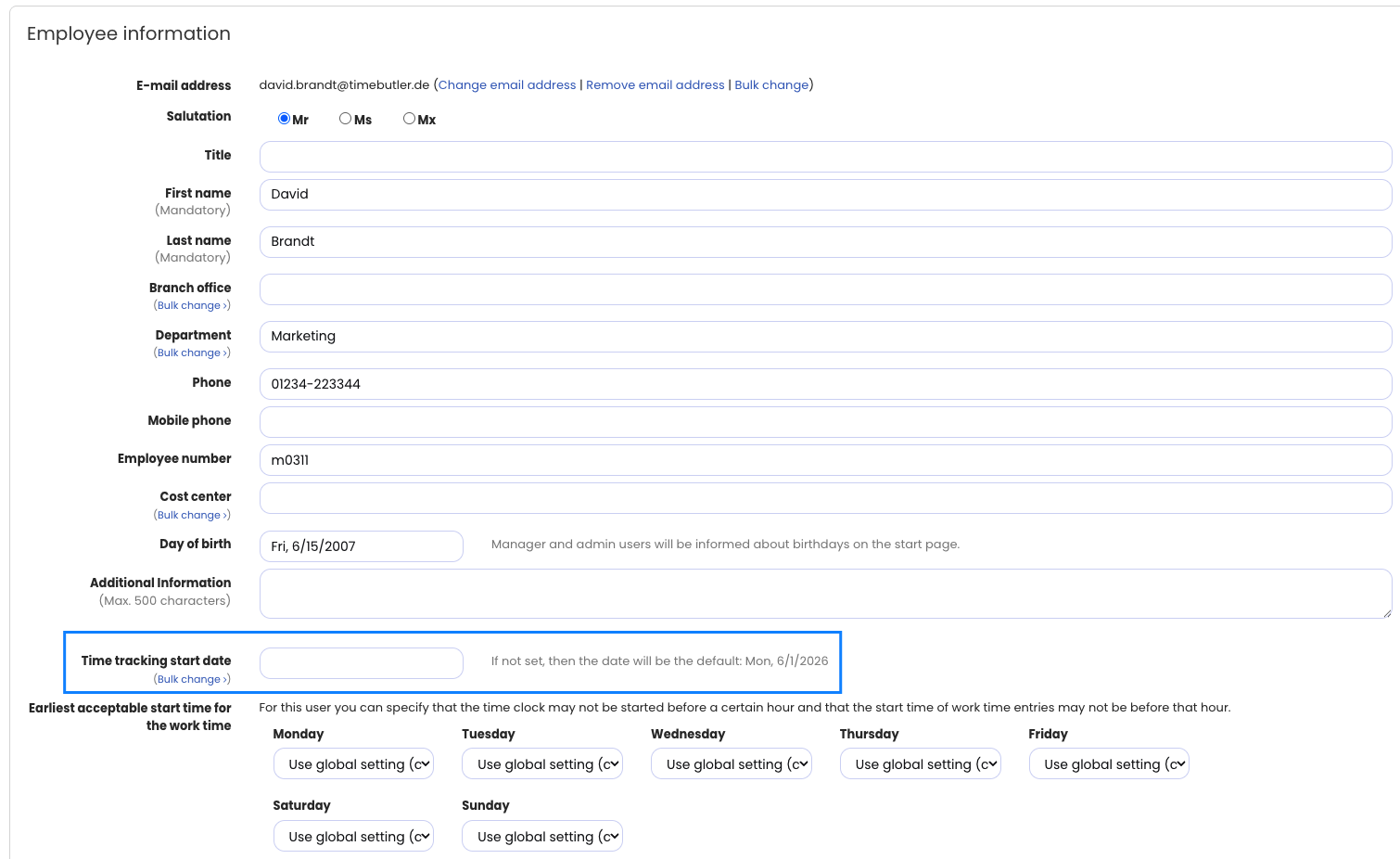
Set the start date individually for an employee
When an employee joins the company and you create a user account for them, you can set an individual time tracking start date alongside the hire date.
You can also set the individual start date afterwards:
- Sign in to Timebutler as an admin and click Employees > Employees > Overview (top left).
- Click the green pencil icon (Edit) for the relevant employee.
- Change the Start of time tracking field and click the blue Save button at the bottom of the page.
Here too, the change takes effect immediately in the working time account.
Change the start date for multiple employees
With just a few clicks, you can change, enter, or delete the time tracking start date for many employees at once.
- Sign in to Timebutler as an admin and click Settings > More.. at the bottom left.
- On the right, click the User accounts bulk import heading.
- Use the options in the Start of time tracking section to make your changes.
Here too, the change takes effect immediately in the working time account.
Set the overtime opening balance
You can define how much overtime employees have at the start of time tracking.
- Sign in to Timebutler as an admin and click Settings > Working time balance at the bottom left.
- In the Working time balance at the start of time tracking on dd.mm.yyyy column (or Working time balance from last year), set each employee’s opening overtime balance.
This entry is transferred immediately to the working time account.