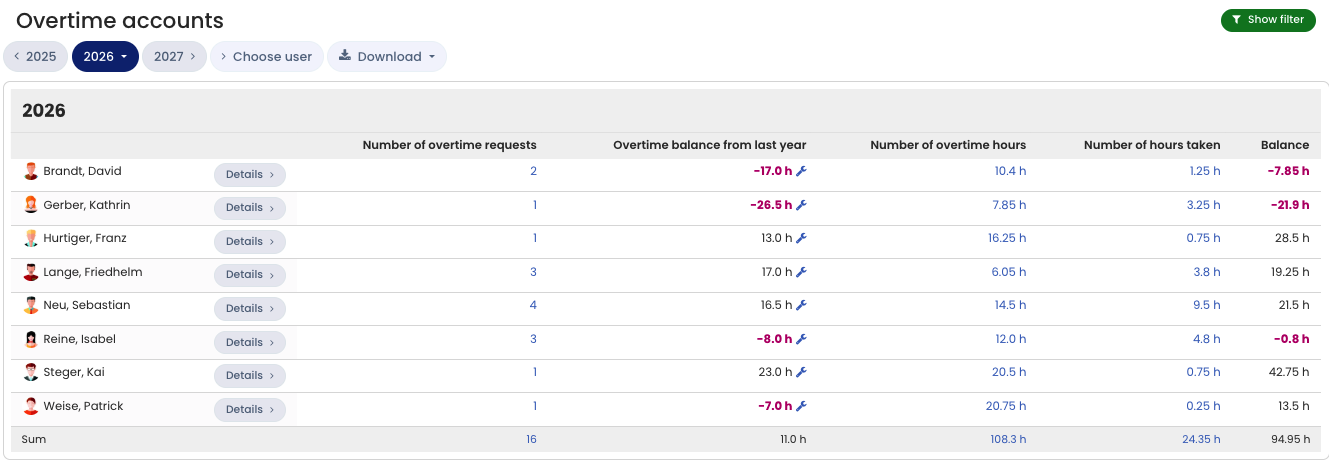
With the overtime feature, employees only enter overtime and overtime reduction, not full working hours. So if an employee has worked their target working time of, for example, 8 hours, they do not need to enter anything. Timebutler keeps an overtime account for each employee and automatically posts overtime and overtime reduction there, together with the previous year’s overtime balance.
Access the overtime account
To access the overtime account, proceed as follows:
Employee users sign in to Timebutler and click Overtime > Overtime account on the left.
Managers and admins sign in to Timebutler and click Employees > Overtime > Overtime accounts at the top left. To open your own overtime account, click My data > Overtime > Overtime account at the top left. You can click the Download button to download the view as an Excel file, then process or send it further.
Carry over overtime to the next year
In the overtime account, under Overtime balance from the previous year, you can see the overtime balance as of December 31 of the previous year and carry the overtime credit from the previous year over to the vacation balance of the next year. Timebutler intentionally does not transfer the overtime credit (and the remaining vacation) to the next year fully automatically. Read here how to carry over overtime to the following year.