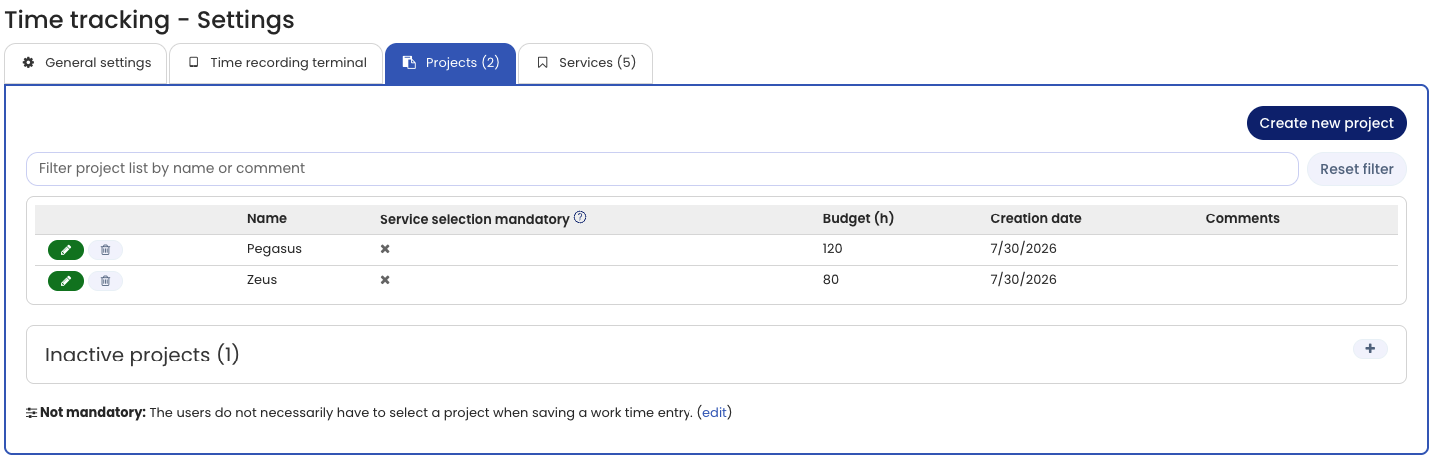
You can create any number of projects for time tracking. Employees allocate their working time to projects. At the end of the month, the end of the quarter, or at any time, you can analyze and group working time by project.
Edit projects
Log in to Timebutler as an admin, click Settings > More… at the bottom left, then Time tracking on the right, and then the Projects tab to edit the list of projects.
Editing services by managers
In the time tracking settings, the Projects and services option lets you as an admin define whether only admins, or both admins and managers, may edit the list of projects and services.
Assign a time entry to project(s)
You can split a single time entry across different projects afterwards, or assign it as a whole to one project. Read here how this works.
Project required
In the time tracking settings, the Project required option specifies whether a project must always be selected for time entries.
Assign projects to employees
Timebutler deliberately does not restrict or assign projects to specific employees or departments. Instead, employees choose their project favorites so they can allocate their working time quickly and conveniently to the right project. Read more about project favorites.
Manage projects via the API
You can also retrieve and change projects automatically via the Timebutler API.