
With overtime capping, you can set an overtime policy for each employee and specify whether and how much overtime should be capped in the month, for example because it is compensated with the salary or because the amount of overtime should be limited to a certain maximum.
Options for capping
Carry all overtime into the next month This is the default setting: all overtime is carried forward and no capping takes place.
All overtime is compensated, neither overtime nor negative hours are carried into the next month This setting is suitable, for example, for freelancers or for employees who are paid by the hour. No overtime accumulates here, and the working time account always starts the month at the previous month’s balance.
Overtime in a month is compensated up to a certain number. Only overtime above the threshold is carried into the next month: If a certain number of overtime hours per month is compensated with the salary for an employee, activate this option. Only overtime above the specified threshold is then carried into the next month.
At most up to a certain number of a month’s overtime hours are carried into the next month. If employees are only compensated for a maximum number of overtime hours per month, activate this option. If an employee works additional overtime beyond that, it is capped at the end of the month.
The overtime balance on the first day of each month may not exceed a certain value — additional overtime is capped In contrast to the previous options, this option limits the maximum total overtime at the start of the month. It does not limit the increase per month, but the maximum total overtime balance at the start of the month.
Expiry of overtime
Choose from the options:
- Overtime does not expire
- Overtime expires at the end of the quarter in which it was accumulated
- Overtime expires at the end of the following quarter (each hour of overtime remains valid for at least 3 and at most 6 months)
Set up overtime capping
You can view or change the overtime capping setting by logging in to Timebutler as an admin and clicking Settings > Working days at the bottom left. In the rightmost column, under Overtime, you see the setting for each employee. To edit the setting, click the blue Edit button for the desired employee.
If you want to set or change capping for a large number of employees, you can do that conveniently via the bulk change of working time models.
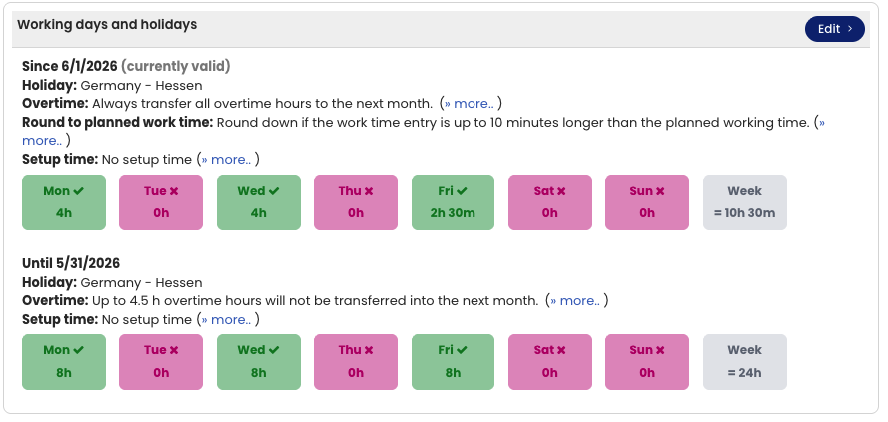
In the detail view of a user account, you can see which weekly working days are set for the employee.
Capped overtime in the working time account
The capped overtime is shown in the working time account, Overtime balance as of the cut-off date view. There you can also display the details for each month to see the exact calculation per month.
Change from a specific month Read here how to proceed when the settings for capped overtime change from a specific month.