If an admin has allowed employees to enter working hours via the input form in the time tracking settings, working hours can be entered as follows.
Employee users
Sign in to Timebutler and click My Data > Time tracking > Enter working time on the left.
To enter multiple working time entries in a single form, for example for a whole week, click Time tracking > Enter time entries on the left.
Managers and admins
Sign in to Timebutler and click Employees > Time tracking > Enter working time in the top left.
To enter multiple working time entries in a single form, for example for a whole week, click Employees > Time tracking > Enter time entries in the top left.
Enter duration or start/end time
As an admin, you can set in the time tracking settings, under the Input method option, whether employees may enter only the duration, only the start and end times, or whether both options are available. With the Enter break times option, you can set whether the start and end times of breaks must also be entered. You will find many other useful settings in the time tracking settings.
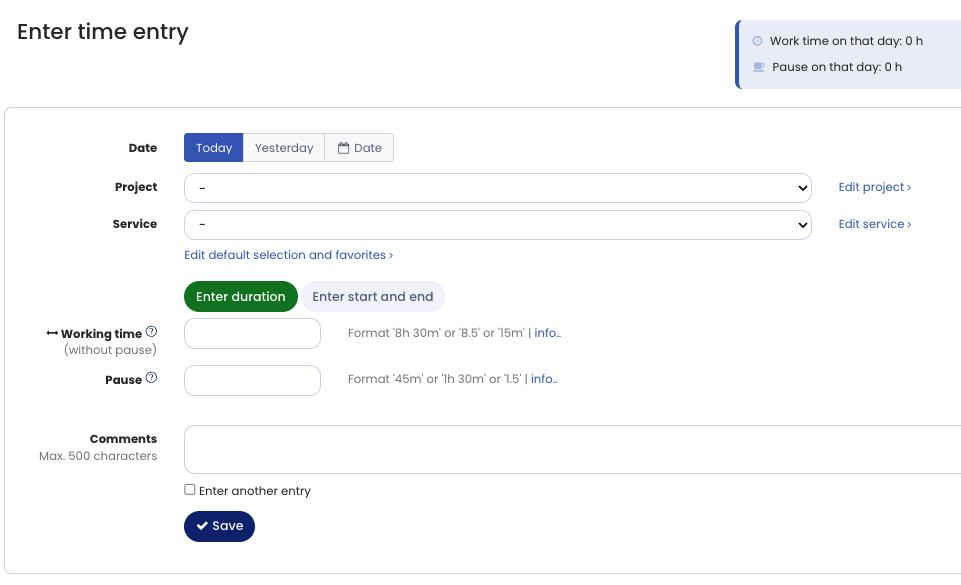
Screenshot: Enter a working time entry via the input form
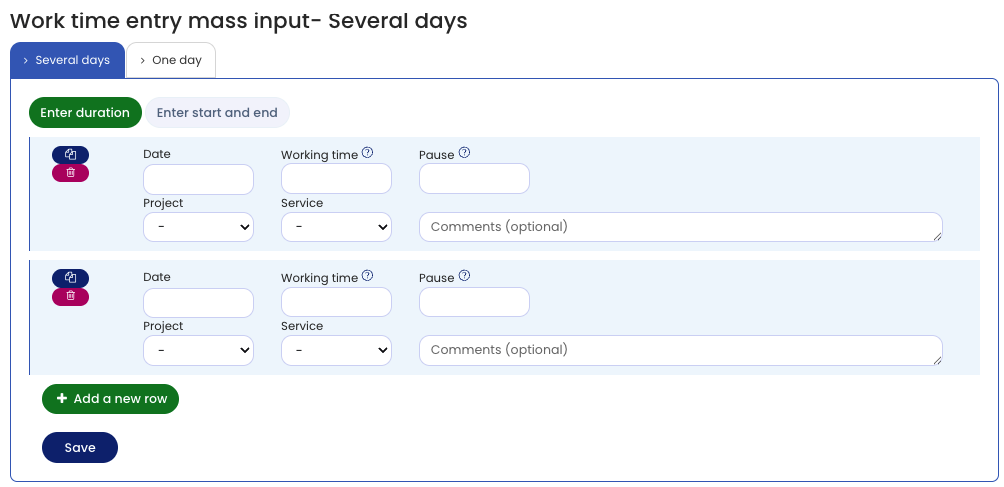
Screenshot: Bulk entry of working time entries via the input form
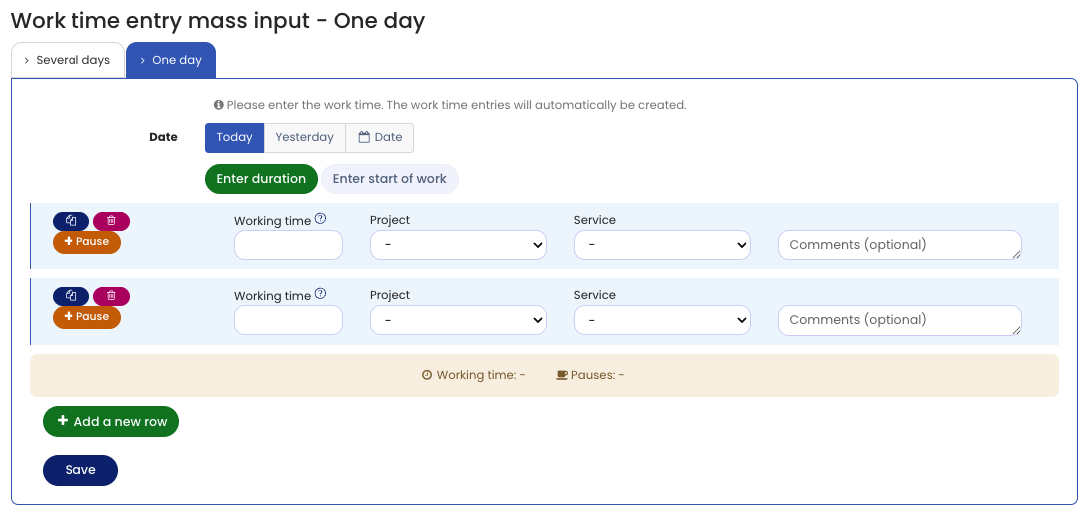
Screenshot: Bulk entry of working time entries for a single day via the input form