
Employees can conveniently clock their working hours using the time clock or the time tracking terminal on a tablet.
Sometimes employees make a short business trip, for example to deliver outgoing mail to the local post office or to buy office supplies. You can record short business trips with just a few clicks via the time clock and the time tracking terminal.
Allow recording of short business trips
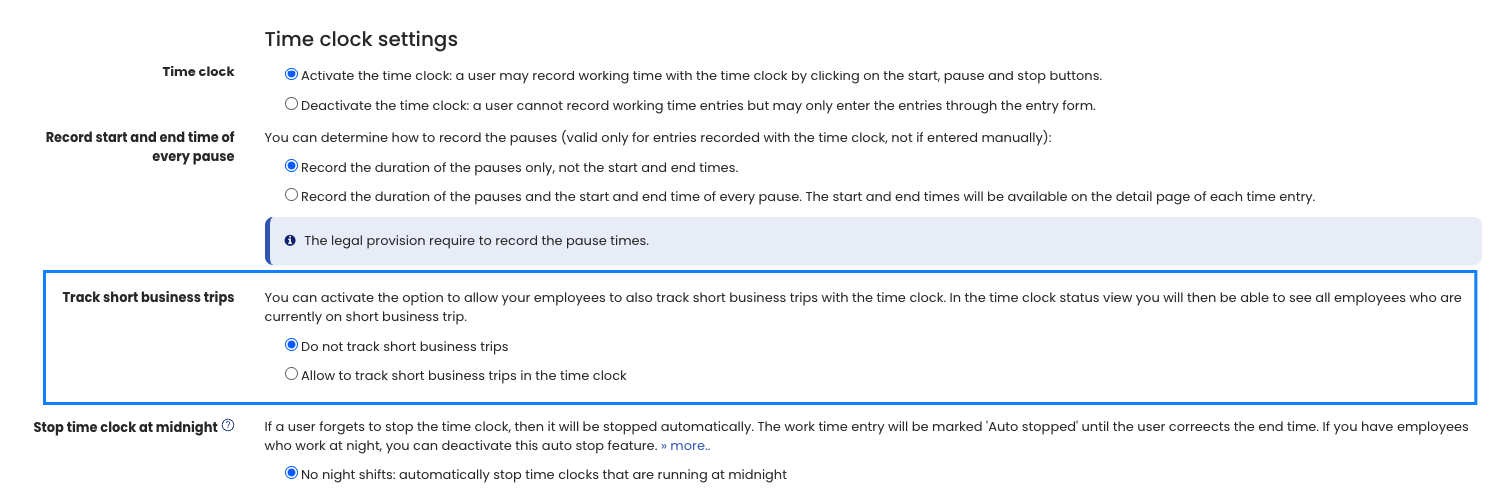
Recording short business trips is disabled by default. You can allow it by signing in to Timebutler as an admin, then clicking “Settings” at the bottom left, then below that clicking “More..”. Now click “Time tracking” on the right.
Here you will find the option “Track short business trips”. Activate the option and confirm the change by clicking the blue “Save” button at the bottom of the page.
Record short business trips
As soon as you allow recording short business trips in the time tracking settings, employees will see a “Start short business trip” button in the time clock and the time tracking terminal (only when the time clock is running). Clicking it saves the start time of the short business trip. The time clock continues tracking working time during the short business trip.
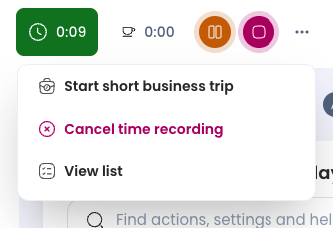
During the short business trip, the icon appears in the top navigation bar.

When the short business trip ends, the user clicks the “End short business trip” button.
Showing short business trip times
In the live status display of the time clocks, you can see which employees are currently on a short business trip and since what time.
You can also view short business trip times for each working time entry afterwards. In the detail view of the working time entry, it shows the short business trip times.