
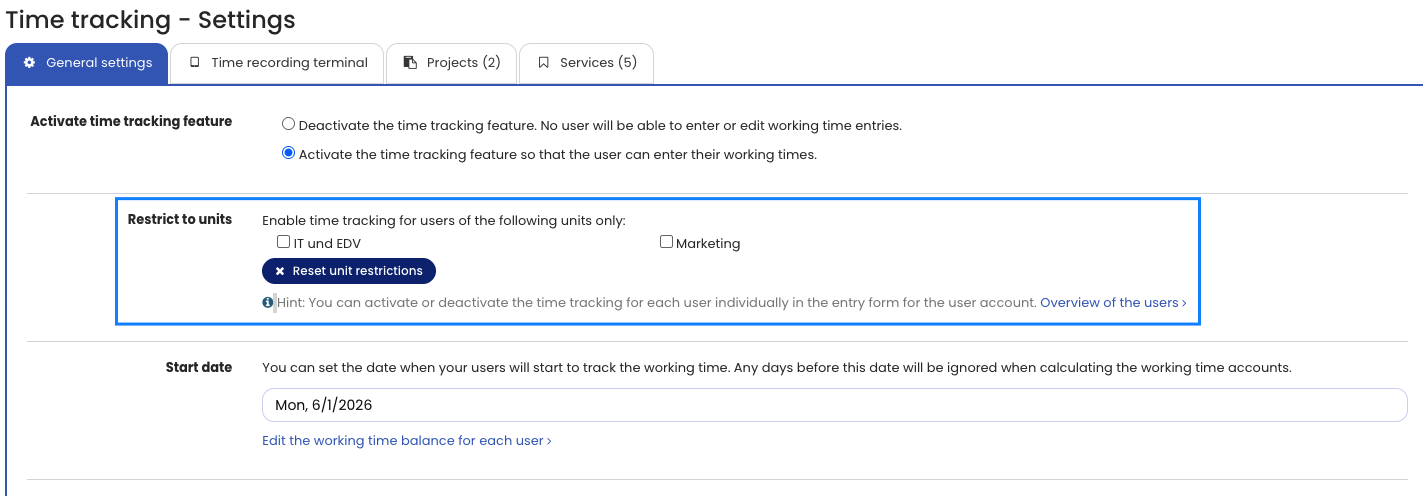
You can enable time tracking for all employees in the company or only for individual units. You can also enable or disable time tracking for individual employees. A unit can be a department or any other organisational unit you have set up in Timebutler.
Restrict time tracking to units
Log in to Timebutler as an admin and click Settings > More… at the bottom left, then Time tracking on the right. At the second option, Restrict to units, you can restrict time tracking to specific units. Then save the changes by clicking the blue Save button at the very bottom of the page.
Set time tracking for employees individually
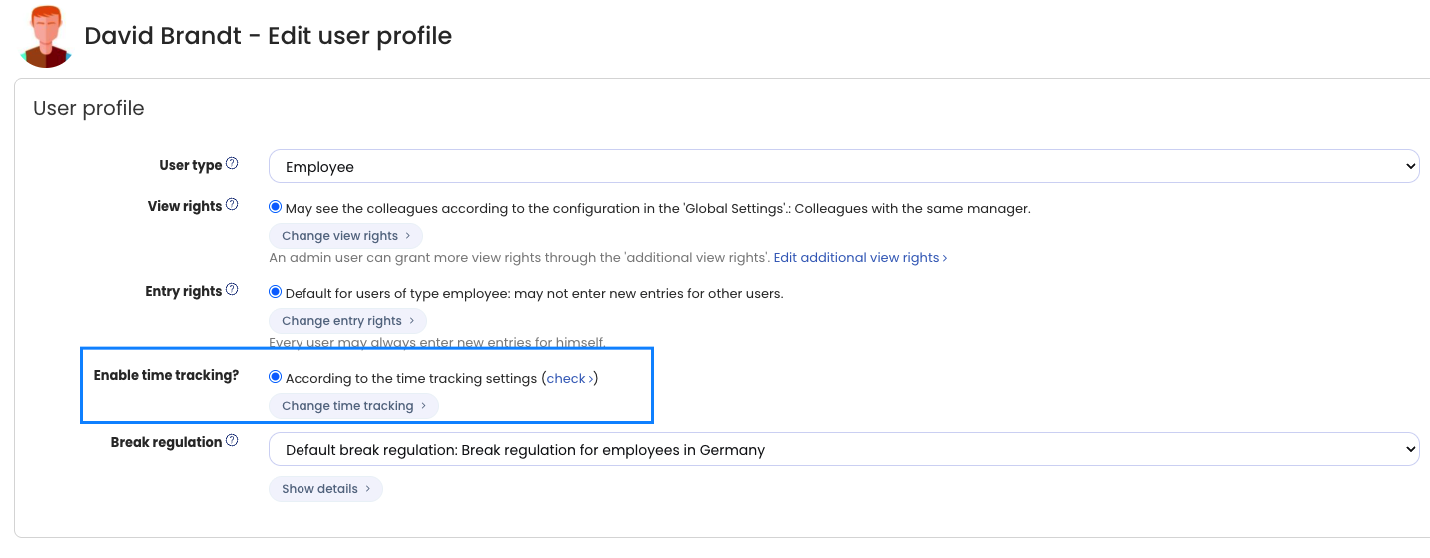
If you want to enable or disable time tracking for individual employees, click Employees at the top left, then Overview below the smaller Employees. In the row of the desired user account, click the green pencil icon (= Edit). At the top, set the desired option under Enable time tracking?. Save the change by clicking the blue Save button at the very bottom of the page.
Managers and trust-based working time
Managers often work with trust-based working time and, unlike employees, do not record working times. Read here how to set up trust-based working time for employees.