
By rounding working hours, you can ensure that when the working time on a calendar day slightly exceeds or falls short of the target working time, it is rounded to the target working time.
For example, you can set that falling short of the target working time by up to 5 minutes is rounded up, and exceeding it by up to 10 minutes is rounded down. For an employee with an 8 h target working time, a working time from 7 h 55 min up to 8 h 10 min is then always rounded to 8 h. Working times above or below these limits remain unchanged.
Configure the rounding of working hours
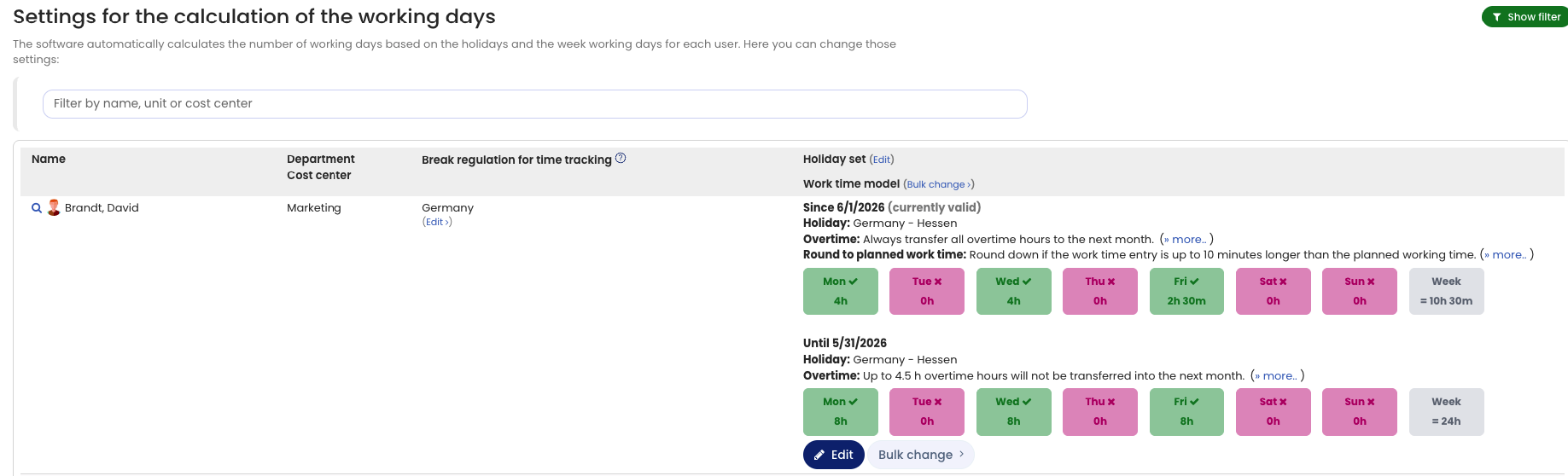
You can view or change the rounding setting by logging in to Timebutler as an admin and clicking Settings > Working days at the bottom left. In the rightmost column, under Round to target working time, you see the setting for each employee. To edit the setting, click the blue Edit button for the desired employee.
If you want to set or change rounding for many employees, you can do this conveniently via the bulk change of working time models.
In the detail view of a user account, you can see which rounding setting is active for the employee:
Rounded working time in the working time account
The working time account, Overtime balance as of the cut-off date view shows the working time deducted due to rounding. There you can also display the details for each month to see the exact calculation per month.
Change from a specific month Read here how to proceed when the settings for rounding working hours change from a specific month.