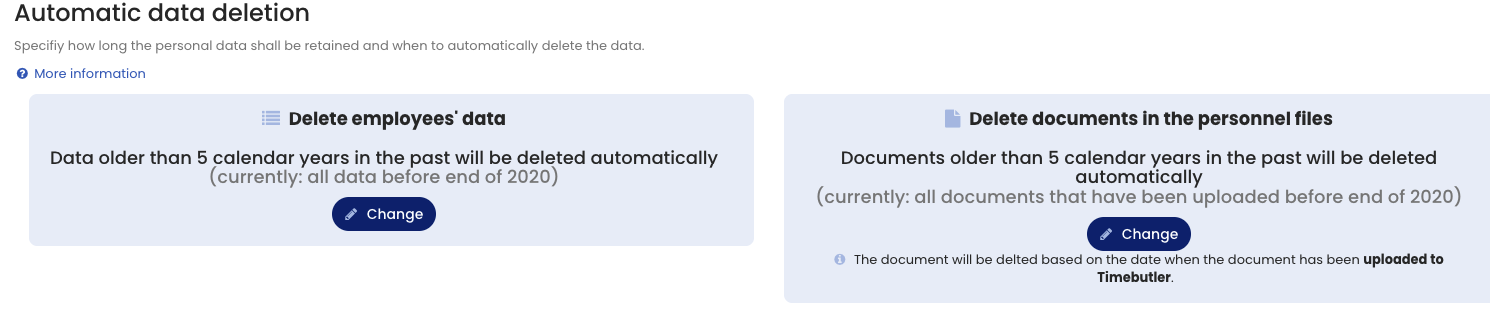
The General Data Protection Regulation (GDPR) stipulates, among other things, that personal data must not be stored and processed longer than necessary. Timebutler helps you comply with this requirement: you can configure employee data to be deleted automatically after a specified period. In addition, you can set an individual deletion date for documents uploaded to the Digital Personnel File.
Settings for automatic deletion
You can define how long personal data is retained and when it is automatically deleted. Sign in to Timebutler as an admin, click Settings > More… at the bottom left, then click Automatic Data Deletion on the right. Here you can set the retention period for employee data and, separately, the retention period for Personnel File documents.
Log of automatic deletion operations
On the same page, under Protocol on the automatic deletion jobs, you can see which deletion operations have been carried out and who changed the settings and when.
Which employee data will be deleted?
Only employees’ transactional data older than the configured period will be deleted:
- Absence entries
- Working time entries
- Overtime entries and overtime reduction requests
- Vacation entitlement values
- Vacation blackout periods
- Working time change requests
User accounts will not be deleted.
Which employee data will not be deleted?
Only the data listed above will be deleted. All other data will be retained, for example:
- User accounts
- Settings
- Holidays and holiday sets
- User groups
- Personnel File
- etc.
Which Personnel File documents will be deleted?
All documents where the upload date is older than the configured retention period will be deleted.
Documents are deleted based on their upload date. Personnel File documents are deleted based on the date they were uploaded to Timebutler — not the document’s creation date or any other date.
Which Personnel File data will not be deleted?
Only documents are deleted, as described above. All other data in the Personnel File will not be deleted.
When will the data be deleted?
- When you change the retention or deletion settings, the affected data will be deleted within the following 48 hours.
- In addition, an automatic deletion routine runs regularly to identify and delete data that has exceeded the configured retention period.
How can data that is not automatically deleted be removed?
If you no longer need a user account and its data, delete the user account. This will permanently and irreversibly delete all data for that user, including all Personnel File data and documents.
Can deleted data be restored?
Data protection regulations require that data be deleted permanently and irreversibly. Deletion is therefore a final and irreversible action — deleted data cannot be restored.
Warning: Deleted data cannot be restored. Make sure you do not configure a retention period that is too short.