
When an employee leaves the company, you can lock their user account.
Locking prevents the employee from signing in to Timebutler. It also immediately disables all of the employee’s calendar subscriptions. This ensures the employee no longer has access to colleagues’ data.
The data is preserved, so you can access it later. Locked user accounts are also hidden from most views.
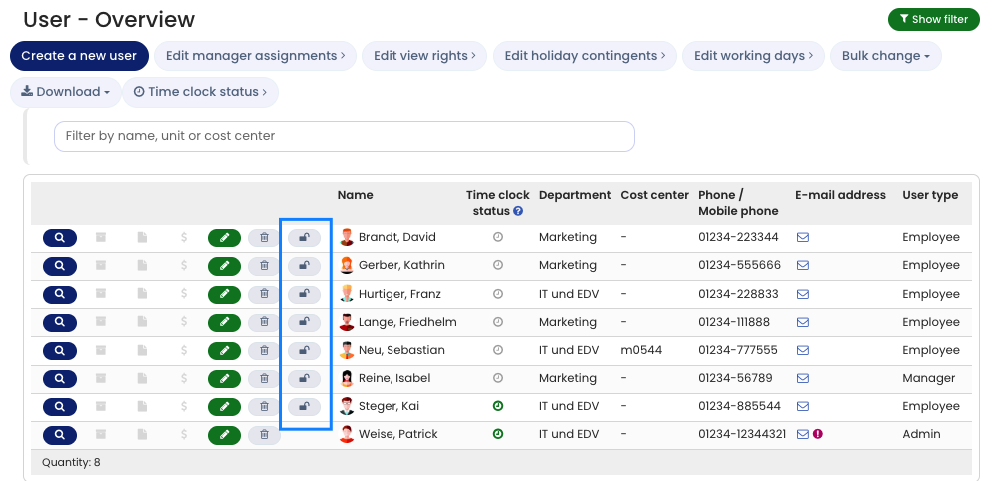
To lock a user account, sign in to Timebutler as an admin and click Employees in the top left, then Overview below the small Employees label. You will now see the list of your user accounts. For the relevant user account, click the padlock icon to lock the account.
Temporarily show locked user accounts
As described above, locked user accounts are hidden from most views. If you want to access the data of a locked user account at a later time, do the following: sign in to Timebutler as an admin and click Settings > More… > Global settings. Review or change the Show locked user accounts option.