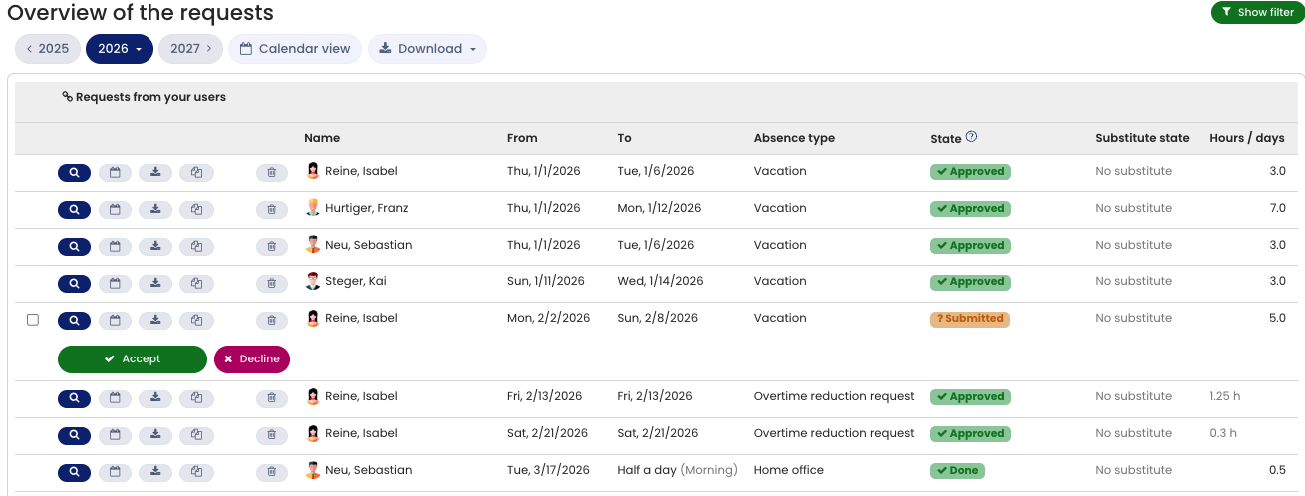
When an employee submits a vacation request, Timebutler starts the approval workflow. The manager receives an email notification about the vacation request. If the employee has multiple managers assigned, the multi-level approval workflow runs.
The email to the manager contains two buttons to approve or reject the vacation request with a single click. The manager can also view and edit open vacation requests by signing in to Timebutler and clicking Requests > Open requests at the top left.
In addition, immediately after signing in to Timebutler, the dashboard clearly displays the open requests in the box at the top left.
Allow vacation without approval
You can also configure that vacation does not require approval.
Approval by the delegate
Using the delegate feature, the delegate can approve or reject their employees’ requests on behalf of the manager during the manager’s absence.
Screenshot: Approving vacation in the list view