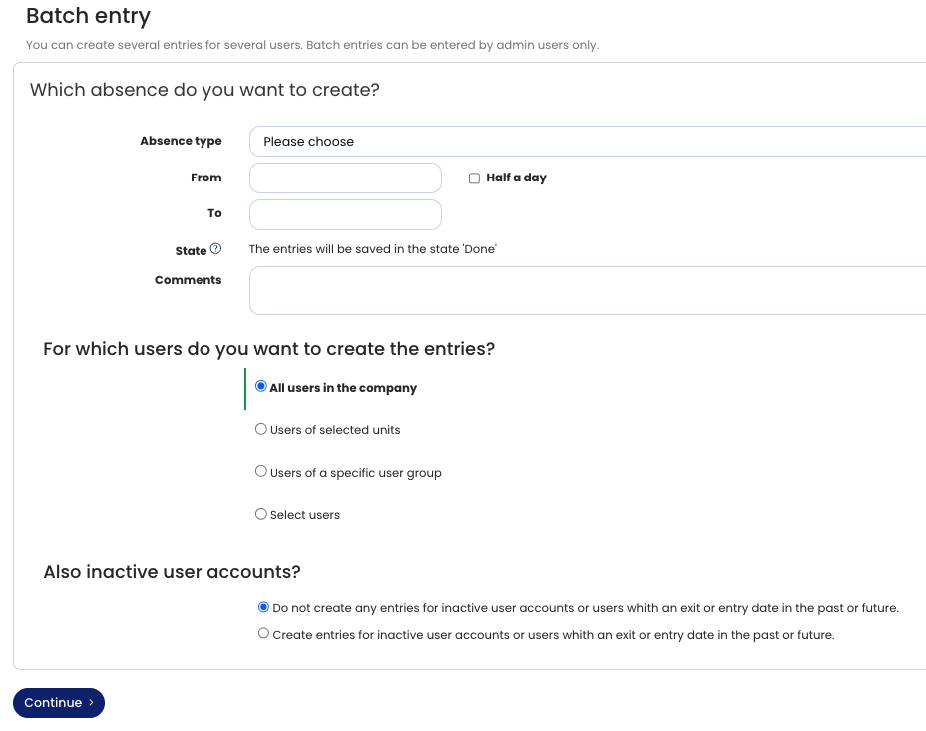
You can create entries for a large number of employees with just a few clicks and, for example, create a company shutdown for several or all employees.
You can make the batch entry for all employees, for employees in a specific department, for employees at a specific location, or for individually selected employees. In the batch entry, you can also set the requests to Approved immediately, without requiring managers to approve them.
To do this, sign in to your account as an admin, click Employees at the top left, then under Absences click New absence entry. On the page, click the Batch entry link next to the employee selection.
In batch entries, you can set the vacation to be approved immediately so that it does not require approval by managers. This lets you, for example, enter a mandatory company shutdown for all employees between Christmas and New Year.
Note
If you want to enter a company shutdown that should be deducted from the vacation balance, enter vacation for the employees via a batch entry. In Timebutler, you can create a new absence type “Company shutdown”. However, if you enter the absence entries as “Company shutdown”, the days will not be deducted from the vacation balance. Only vacation requests are deducted from the vacation balance.
If, on the other hand, you do not want the company shutdown to be deducted from the vacation balance, then create a new absence type “Company shutdown” and then make a batch entry of the type “Company shutdown”. This company shutdown absence entry will not be deducted from the vacation balance.
Company shutdown batch entry