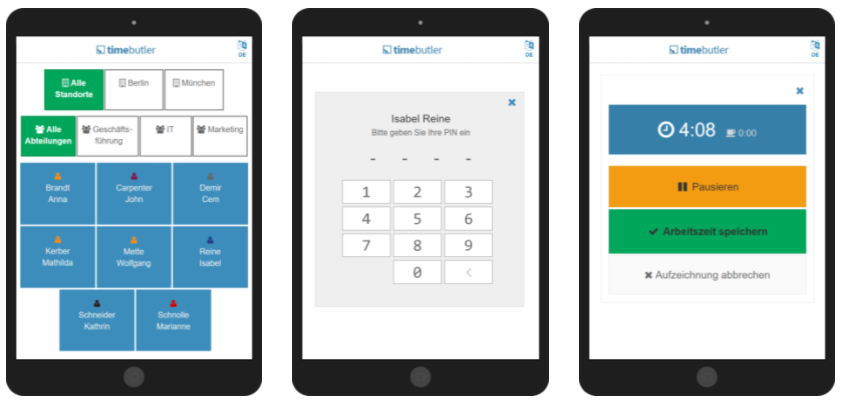
Timebutler offers a fully integrated time tracking terminal.
You can activate the time tracking terminal on a standard tablet. Place the tablet at the office or company entrance (there are professional mounts for tablets), and each employee can then clock their time at the time tracking terminal in the morning as follows:
Clock time
On the time tracking terminal, a tile appears for each employee. The employee taps the tile with their name and then enters their personal PIN. They now see the time clock and can start it, pause it, end the break, or stop the time clock, each with a tap on the screen.
PIN for the time tracking terminal
Every employee can view and also change the PIN for the time tracking terminal. To do this, they sign in to their Timebutler user account, go to Settings > Your user account at the bottom left, and then see the PIN at the top right, along with the option to set their preferred PIN.
PIN missing?
If an employee does not see the PIN, it is because time tracking is not activated for that employee.
Employees without an email address
Read here how employees without an email address receive the PIN.
The Timebutler time tracking terminal on a tablet