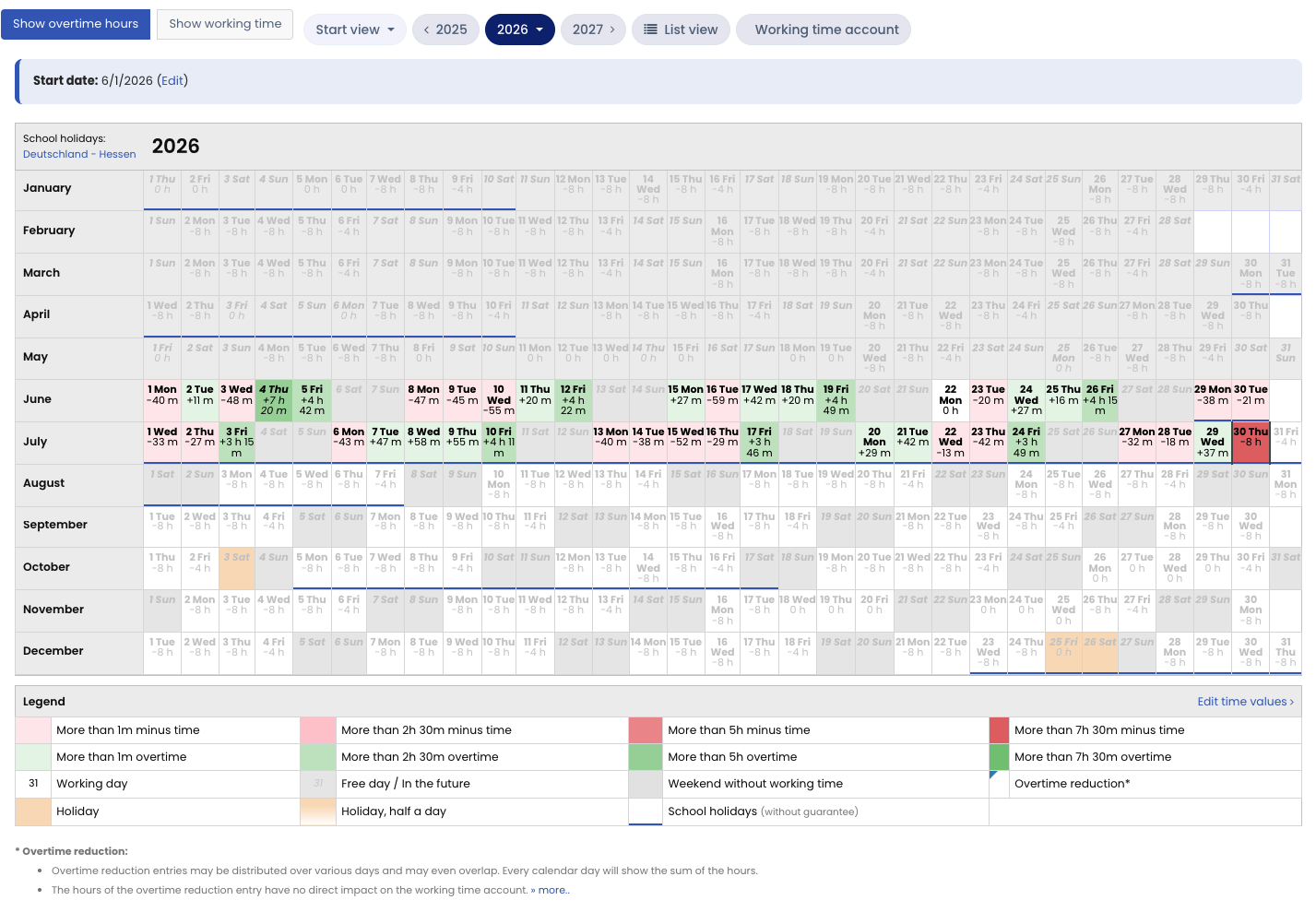
In the calendar view of time entries, there are two views: the calendar view of overtime and the calendar view of working time. You switch views with the two buttons above the calendar (see the note further down this page).
In the calendar view of overtime, the calendar shows the number of overtime hours and negative hours for each day. The colours help you identify days with especially many overtime hours or many negative hours. Green stands for overtime — the darker the colour, the more there was that day. Red stands for negative hours — the darker the colour, the more there was that day.
Show additional information When you hover over the calendar with the mouse, you get additional information about overtime for each calendar day. When you click a day in the calendar, you see the time entries for the day.
Note: An admin can define for the user types Employee, Manager, and Admin whether the overtime view is visible in the calendar view of time entries. If you do not see the button to switch to the overtime view, an admin has disabled this display for your user type.