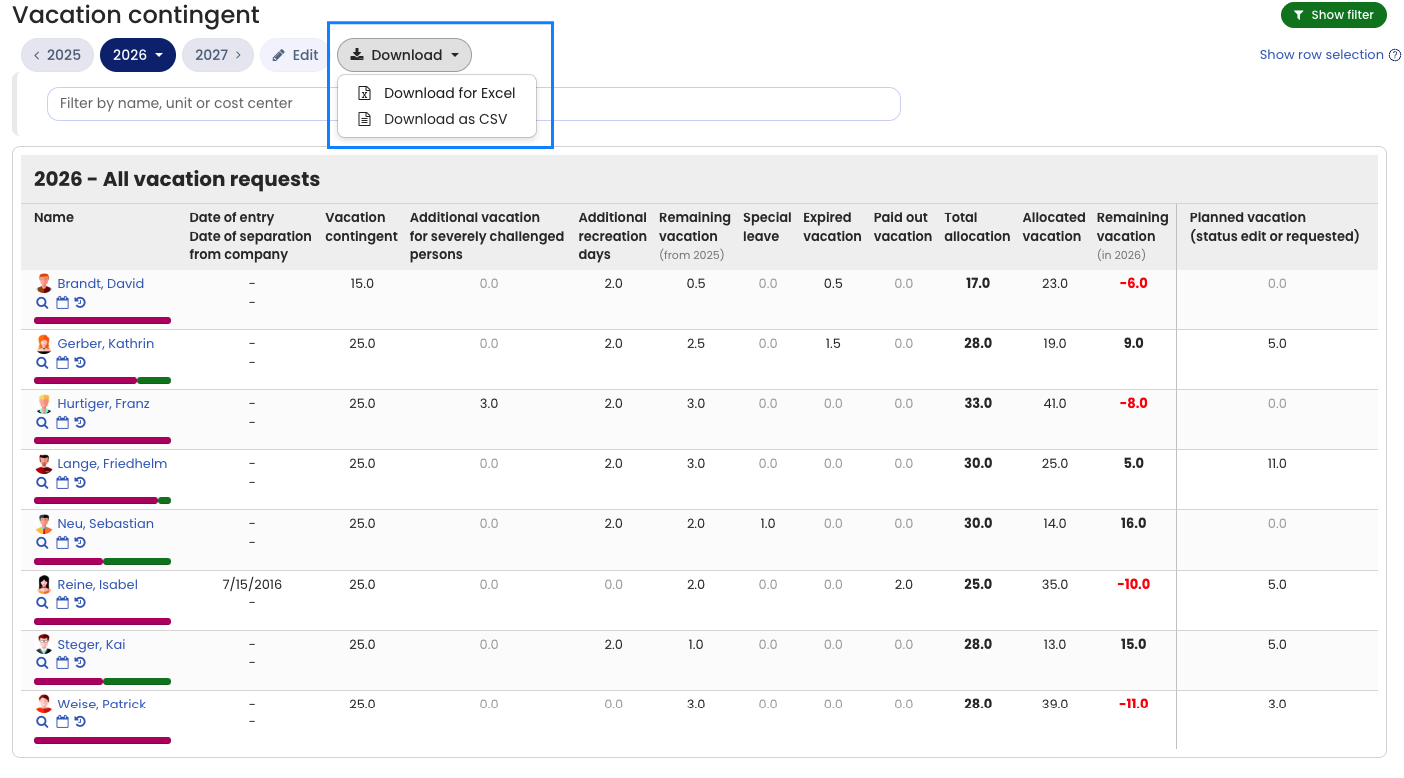
An admin or manager can access the vacation contingent for multiple employees and download the data as an Excel file or CSV file. There are two ways to do this:
1) View and download vacation contingent
Sign in to Timebutler as an admin or manager and go to Employees > Absences > Vacation contingent at the top left. Now click the Download button to download the vacation contingent as an Excel file or CSV file.
If you want the report to include vacation requests only up to today or up to a specific month, click the green Show filter button at the top right of the vacation contingent view and change the All vacation requests setting to one of the other options. Then click the Apply button. The page reloads, and the vacation contingent now shows only the vacation requests you configured in the filter.
This view is especially useful when you want to determine the number of vacation days for accruals.
2) Download vacation contingent via the Download Center
Read here how to download vacation contingent via the Download Center.