
Once you activate the time recording terminal on a tablet, it stays permanently active on that tablet, and you do not need to activate it a second time.
Proceed as follows:
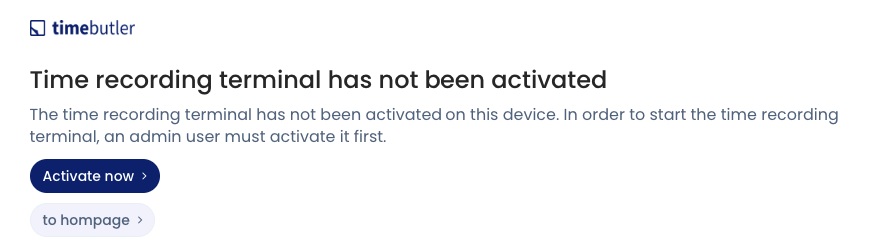
On the tablet, open a web browser and go to app.timebutler.com/terminal. If the terminal has not yet been activated on the device, you will see the following screen. Click Activate now.
Follow the instructions on the website to activate the time recording terminal on the device. To do this, you log in with an admin account, then click Activate the time recording terminal on this device.
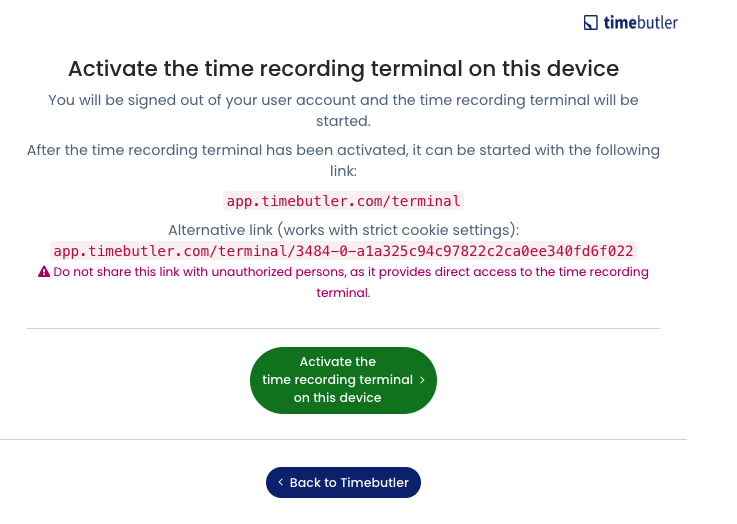
As soon as activation is complete, the system automatically logs the admin account out of the device completely. This is important so that no one can access the admin account on the device.
The time recording terminal is now permanently active. If you restart the tablet, for example, simply open app.timebutler.com/terminal again, and the time recording terminal is ready to go immediately, without reactivation or login. It is best to set the link as the browser’s homepage.
Important: For the activation to stay permanent, cookies must be enabled in the tablet’s browser. Please check whether cookies are enabled, and make sure the cookies are not deleted automatically, for example when the browser is closed or the tablet is restarted.
Tip: You can specify that all or specific employees may only clock their working time at the time recording terminal.
Multiple time recording terminals
You can activate multiple time recording terminals on multiple tablets. For example, you can provide one at the office entrance and another in front of the canteen. The terminals are automatically synchronised with each other, and employees can clock in or out at any terminal.