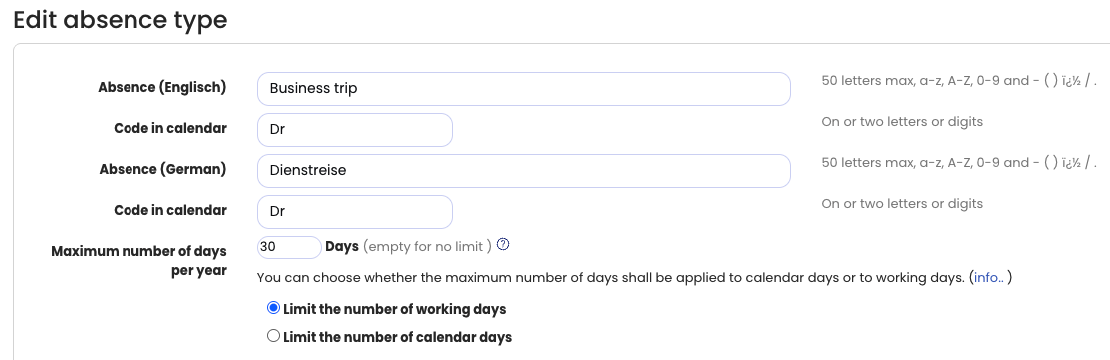
For almost every absence type (for example, training, home office, business trip, etc.), you can define a maximum number of days per calendar year that each employee is allowed to take.
Viewing the yearly limit
- Log in to Timebutler as an admin.
- Click Settings > More… in the lower-left corner.
- Select Absence types.
- In the Maximum number of days per year column, you can see which absence types currently have a yearly limit configured.
Editing the yearly limit
- In the row of the relevant absence type, click the green pencil icon (Edit).
- Update the Yearly limit setting.
You can also choose whether the limit should apply to:
- Working days, or
- Calendar days
Example
- If you set a limit of 7 days and restrict it to working days, an absence could run from Monday to Tuesday of the following week (assuming the employee does not work on Saturdays and Sundays). This period includes 9 calendar days, but only 7 working days.
- If the limit is set to calendar days, an absence from Monday to Tuesday of the following week would not be allowed, because it spans 9 calendar days. In this case, only an absence from Monday to Sunday would be possible.
- Click Save at the bottom of the page to apply the changes.
When the change takes effect
The updated yearly limit applies immediately to new absence entries.
Screenshot: Annual cap for absences