
Masking Absences for Employees
As an admin, you can configure whether employees can see the specific type of absence entered by other employees.
If masking is enabled for a particular absence type, employees will still see that a colleague is absent in the calendar. However, instead of the actual absence type (for example, sick leave or unpaid leave), only a neutral label such as “Absent” will be displayed.
This allows you to define visibility per absence type. For example:
- Absence types such as vacation, home office, and business trip can be fully visible to employees.
- Absence types such as sick leave or unpaid leave can be displayed in a masked way.
Masking can be configured individually for each absence type.
Configuring Masking per Absence Type
- Log in to Timebutler as an admin.
- Click Settings > More… in the lower-left corner.
- Select Absence types.
- In the Mask for employees column, you can see which absence types are currently masked.
To change the setting:
- In the row of the relevant absence type, click the green pencil icon (Edit).
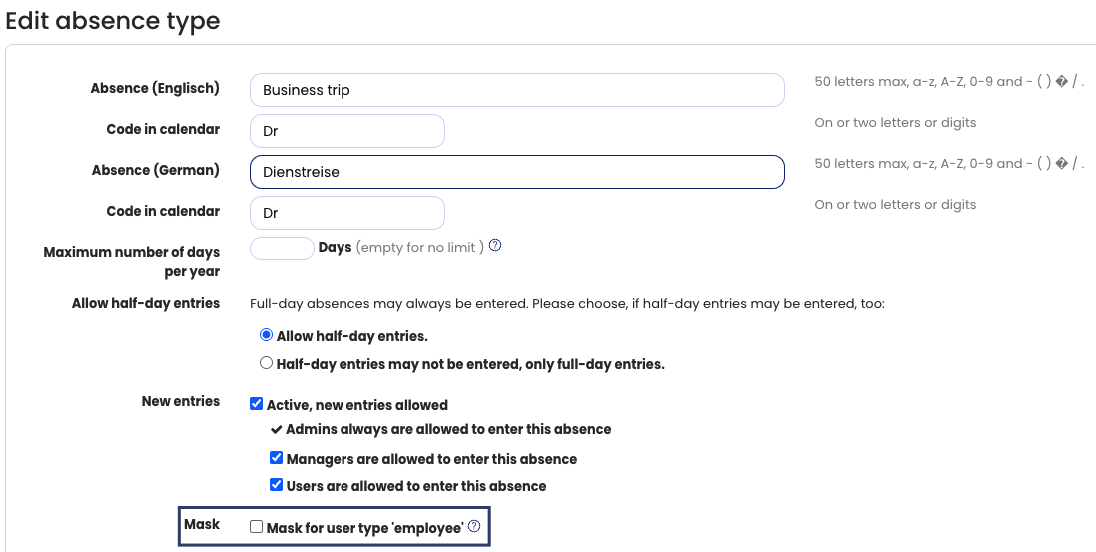
- Change the Mask for employees setting.
- Click Save at the bottom of the page.
Screenshot: Mask absence type
Masking Does Not Apply to Supervisors or Admins
Masking applies only when employees are logged in to Timebutler.
It does not apply to supervisors or admins.
Supervisors and admins always see the full absence details, as they require complete information for operational management, planning, and for approving vacation requests and approval-required absence entries.