You can convert vacation balance into working time credit: the system deducts vacation from the vacation account and, in return, increases the overtime credit in the working time account. This allows an employee to offset negative hours in the working time account with vacation. An admin can perform the conversion.
Here is an example for employee Schmitt, who has -8 h in the working time account and wants to convert 2 days of vacation (16 h) into working time credit:
1. Enter paid-out vacation
Sign in to Timebutler as an admin and go to Settings > Vacation contingent in the bottom left. In Schmitt’s row, increase the number in the Paid-out vacation column by 2 days. If there is a 0 there, enter a 2. Then click the Save changes button on the right in the row. This immediately deducts 2 days of vacation balance from the employee’s vacation account.
Inform the employee that the display of the 2 paid-out vacation days does not mean the vacation was actually paid out, but that it serves as an offset for the working time account (which ultimately also affects salary).
2. Increase working time
You now need to increase the working time by 16 h. You have two options. Choose one of the two:
1) Increase working time balance
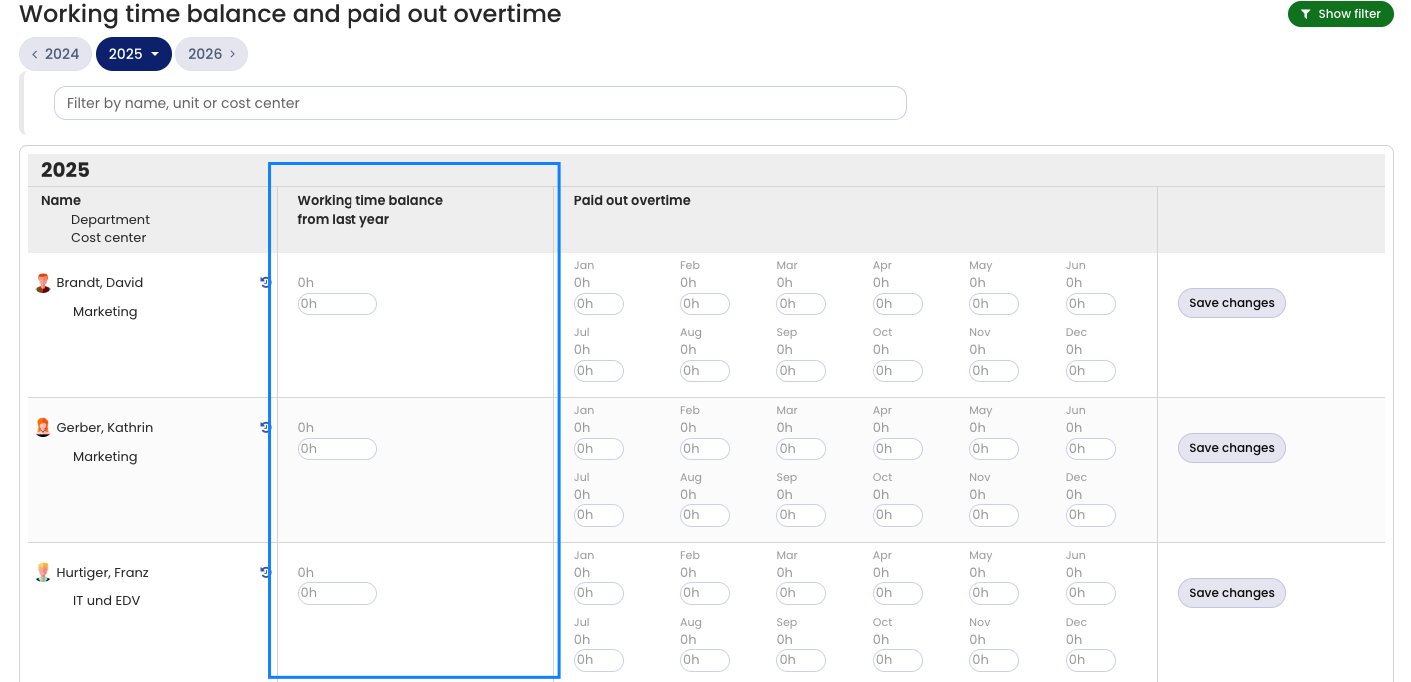
Go to Settings > Working time balance and paid out overtime in the bottom left. In Schmitt’s row, increase the value in the Working time balance from the previous year column (or Working time balance at the start of time tracking on dd.mm.yyyy) by 16. If it shows 21.5, change it to 37.5. Then click Save changes on the right in the row. This immediately increases the working time account credit by 16 h.
2) Enter working time
Enter a new working time entry for Schmitt that includes the number of hours by which you want to increase the working time—in this example, a working time entry of 16 h. This time is immediately credited to the working time account and increases the working time account credit by 16 h.
When entering the working time entry, add an appropriate comment in the notes, for example “16 h offset by converting vacation”. It also makes sense to place the working time entry on a Sunday: that way there is no clash with a real working time entry by the employee, and it is clear that this is not actual time worked.
Read here how to convert salary into working time credit.
Screenshot: Working time balance at the start of time tracking