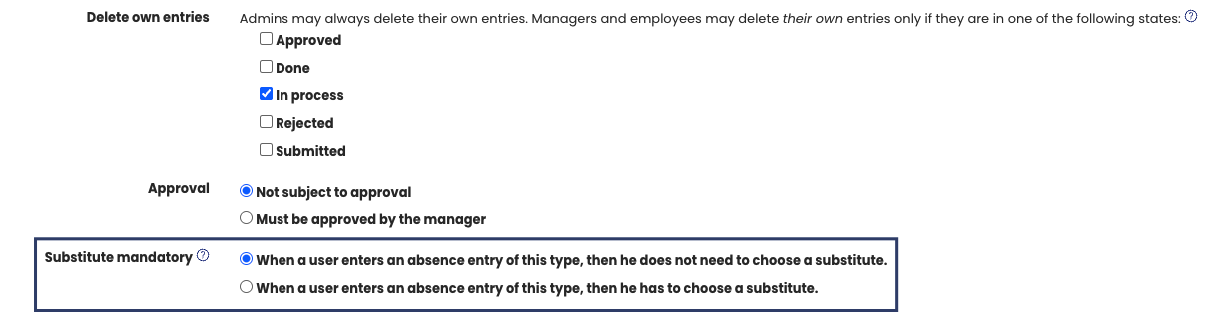
For each absence type (for example, training, home office, business trip, etc.), you can define whether a substitute must be selected when a user creates a new absence entry.
If this option is enabled, the user is required to choose a substitute before the absence entry can be saved.
If the option is disabled, selecting a substitute is optional.
Viewing the Substitute Requirement
- Log in to Timebutler as an admin.
- Click Settings > More… in the lower-left corner.
- Select Absence types.
- In the Substitute mandatory column, you can see which absence types currently require a substitute to be selected.
Changing the Substitute Requirement
- In the row of the relevant absence type, click the green pencil icon (Edit).
- Change the Substitute mandatory setting.
- Click Save at the bottom of the page.
When the Change Takes Effect
The updated setting applies immediately to new absence entries. Existing absence entries remain unchanged.
Screenshot: Setting for substitute required
Substitute Requirement Applies to All Employees
The substitute requirement applies equally to all employees.
It is not possible to enable mandatory substitute selection for specific individuals and disable it for others.
If certain managers or employees should not be required to select a substitute, the following alternatives are available:
-
The manager or employee still selects a substitute.
This can also be helpful for the manager’s team, as employees know who to contact during the manager’s vacation or absence. -
You can create a new user account named “Dummy substitute” and select the option “Employee without email address.”
The manager or employee can then select “Dummy substitute” as their substitute.
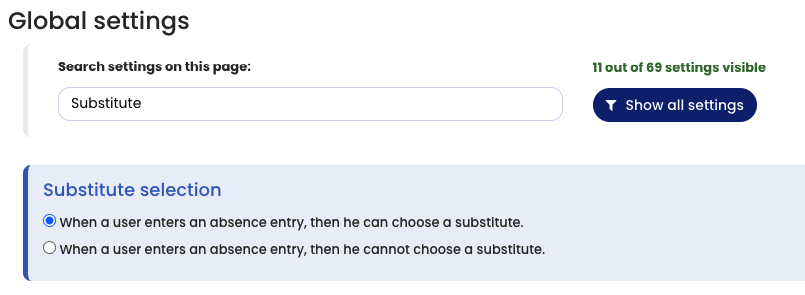
Enabling Substitute Selection
Substitute selection can be completely disabled.
If substitute selection is disabled, Timebutler does not enforce the substitute requirement, because no substitute can be selected.
To verify that substitute selection is enabled:
- Log in to Timebutler as an admin.
- Click Settings > More… in the lower-left corner.
- Select Global settings.
- Check the option “Offer substitute selection.”