If you no longer need an absence type, or if you want to prevent employees from creating new absence entries of a specific type, you can delete or deactivate the absence type.
Delete absence type
- Log in to Timebutler as an admin.
- Click “Settings > More…” in the lower-left corner.
- Select “Absence types.”
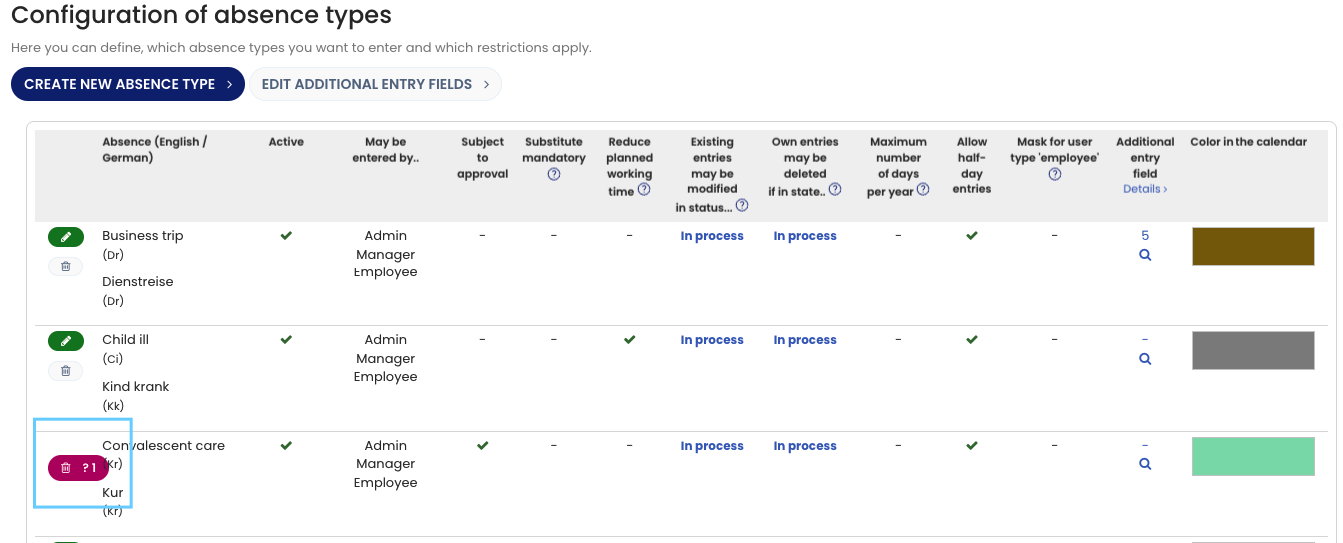
- In the row of the desired absence type, click the red trash can icon.
- A countdown starts. Click the red trash can icon again during the countdown to confirm that you want to permanently delete the absence type.
Screenshot: Delete absence type
When Deleting Is Not Possible
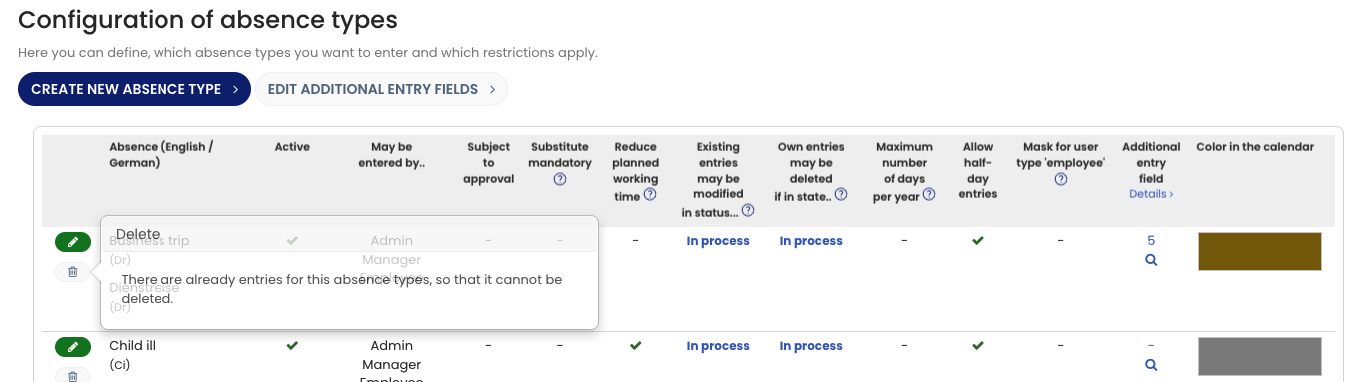
If the trash can icon is greyed out instead of red, the absence type cannot be deleted. This can happen for one of the following reasons:
1) Absence Entries Already Exist for This Absence Type
If absence entries have already been created using this absence type, the type cannot be deleted.
This restriction exists because deleting the absence type would result in absence entries without a name, which could no longer be displayed or interpreted correctly.
Even if all absence records of this type have been deleted, the absence type still cannot be removed. Deleted absence entries are logged by Timebutler and can be downloaded at any time. For this reason, the absence type must remain available for these records.
In this case, the absence type can be deactivated instead, which has almost the same effect as deleting it. Instructions for deactivation are provided below.
2) The Absence Type Is a Timebutler System Type
Some absence types are handled internally by Timebutler and therefore cannot be deleted. These include, for example:
- Vacation
- Sick leave
- Overtime
- Overtime reduction
This limitation also ensures that these absence types can be reactivated and used again at a later time if needed.
In this case as well, the absence type can be deactivated instead, which is nearly equivalent to deleting it.
Screenshot: Cannot delete absence type
Deactivating an Absence Type When Deletion Is Not Possible
If an absence type cannot be deleted, you can deactivate it instead.
When an absence type is deactivated:
- Employees can no longer create new absence entries of this type.
- Existing absence entries of this type continue to be displayed correctly.
How to Deactivate an Absence Type
- Log in to Timebutler as an admin.
- Click “Settings > More…” in the lower-left corner.
- Select “Absence types.”
- Click the green pencil icon (Edit) for the desired absence type.
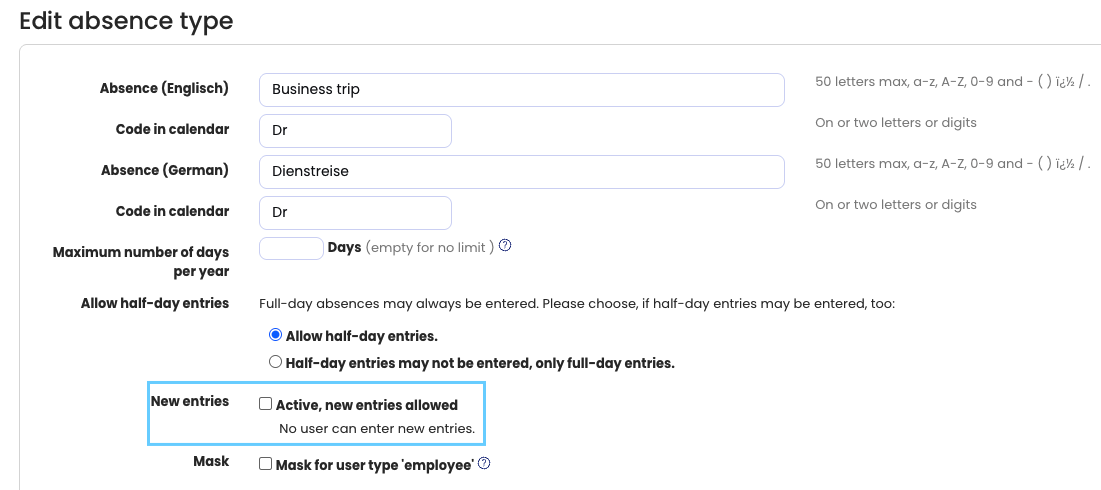
- Under “New entries,” remove the checkmark from “Active, new entries allowed.”
- Click the blue “Save” button to apply the changes.
Screenshot: Deactivate absence type