Employee users
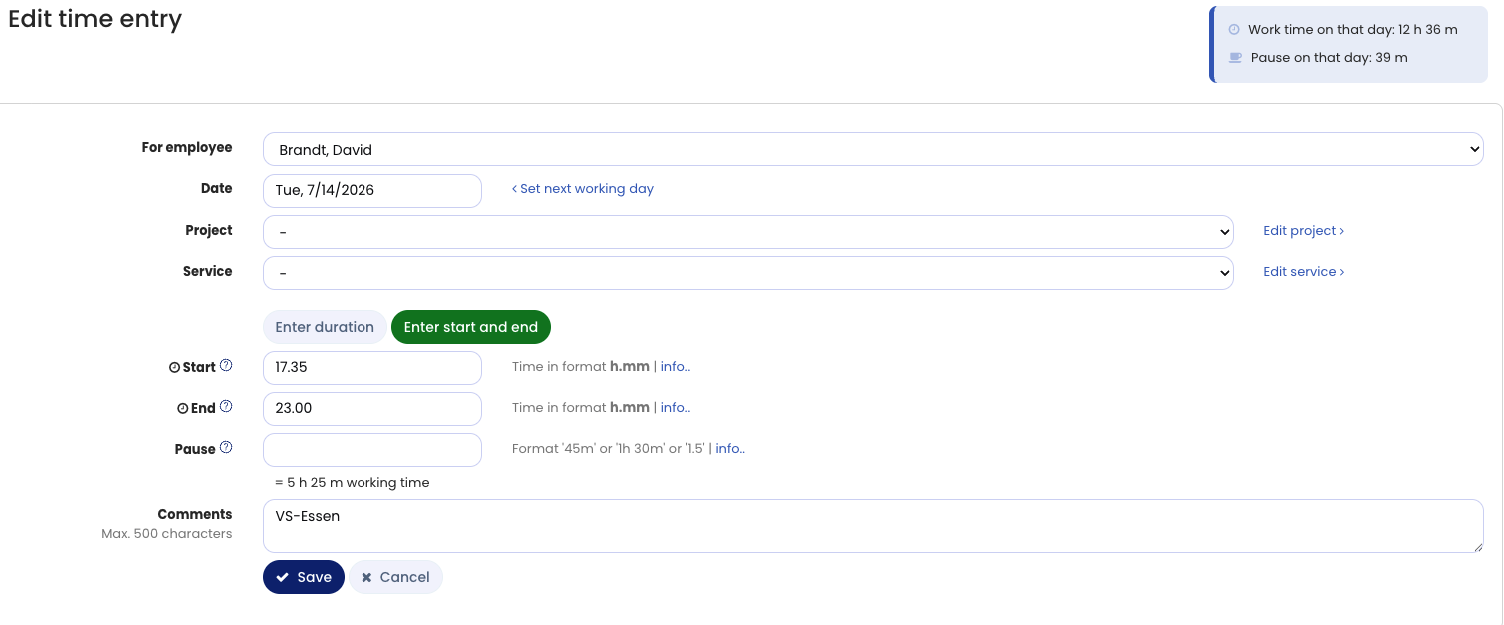
The employee user signs in to Timebutler and goes to Time tracking > List view on the left. For the desired time entry, they click the green pencil icon (=Edit). They can now make changes to the time entry and save the change.
An admin can configure in the Time tracking settings whether the change is applied immediately, or whether the manager is notified of the change and must approve it first.
Managers and admins
The manager or admin signs in to Timebutler and goes to Employees > Time tracking > List view at the top left. For the desired time entry, they click the green pencil icon (=Edit). They can now make changes to the time entry and save the change.
An admin can configure in the Time tracking settings that working hours can only be changed up to a certain number of days in the past, that time entries for the previous month are automatically frozen on a specific day of the month, and other restrictions.
Screenshot: Edit time entry