
Depending on their user type, employees have different entry and editing permissions.
Extend entry permissions for employee users
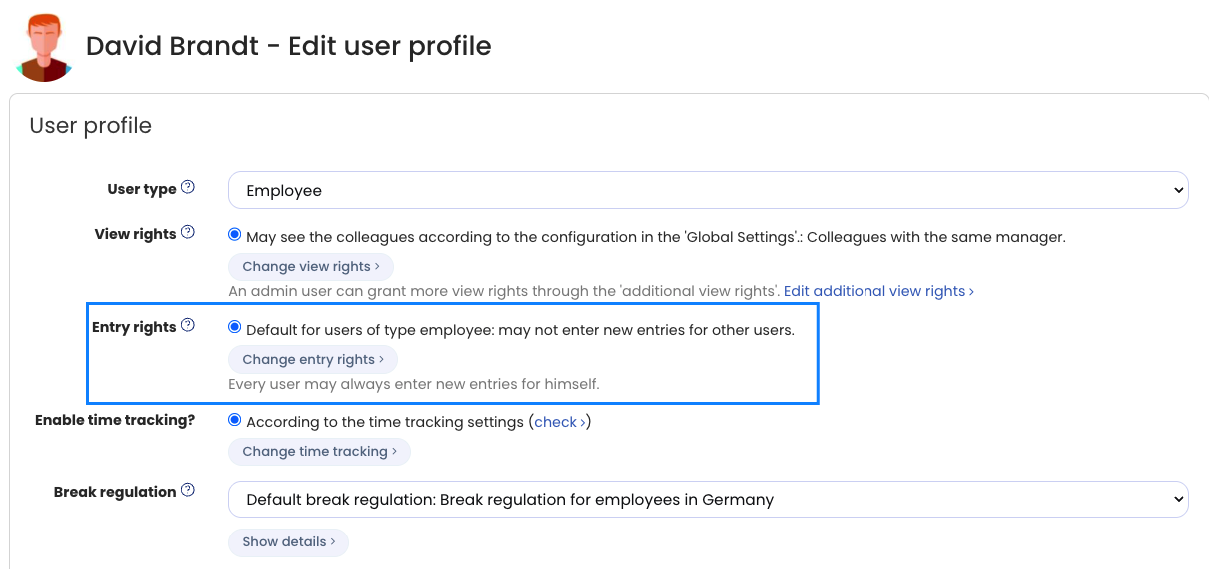
Employee users can only enter vacation and absences for themselves. An admin can grant specific employees the right to enter vacation and absences for other employees as well.
To change this setting on the user account, log in to Timebutler as an admin and click Employees > Employees > Overview at the top left, then click the green pencil icon for the relevant employee. Change the setting under Entry permission.
The following options are available:
- Default for employee users: cannot create entries for any other users.
- Can create entries for all users they have visibility permissions for (including visibility permissions from the “Extended visibility permissions”).
- Entry permission for all users: can create entries for all users in the company.
- No entry permission: cannot create entries for any other users.
Define entry permissions by absence type
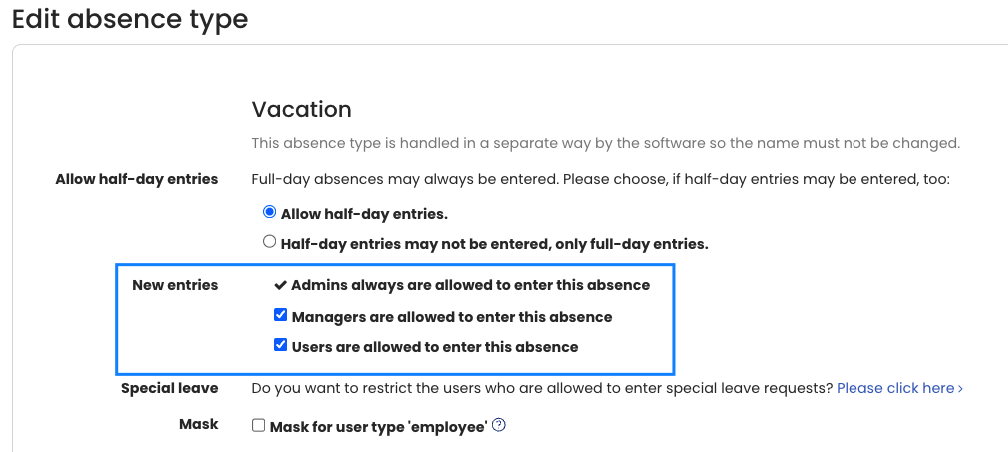
Admins can always enter any absence type. For each absence type, you can specify whether employee users or supervisors may also enter it.
Log in to Timebutler as an admin, click Settings > More… at the bottom left, then click Absence types on the right. In the overview, you can see the settings for each absence type, including whether it requires approval. To edit an absence type, click the green Edit button in the row of the relevant absence type. Make the changes you want and save them.
For each absence type, you can also set whether the entries require approval.