
Timebutler logs changes to the entitlement data of the leave account (leave entitlement, remaining leave, special leave, expired leave, etc.). This lets you see which user changed the entitlement data.
Time balances are also logged If the time tracking feature is enabled, Timebutler also logs changes to the working time balance at the start of time tracking as well as changes when transferring overtime credit to the next year.
If the overtime feature is enabled, Timebutler also logs changes to the previous year’s overtime account as well as changes when transferring overtime credit to the next year.
Open change history: Admins and Managers
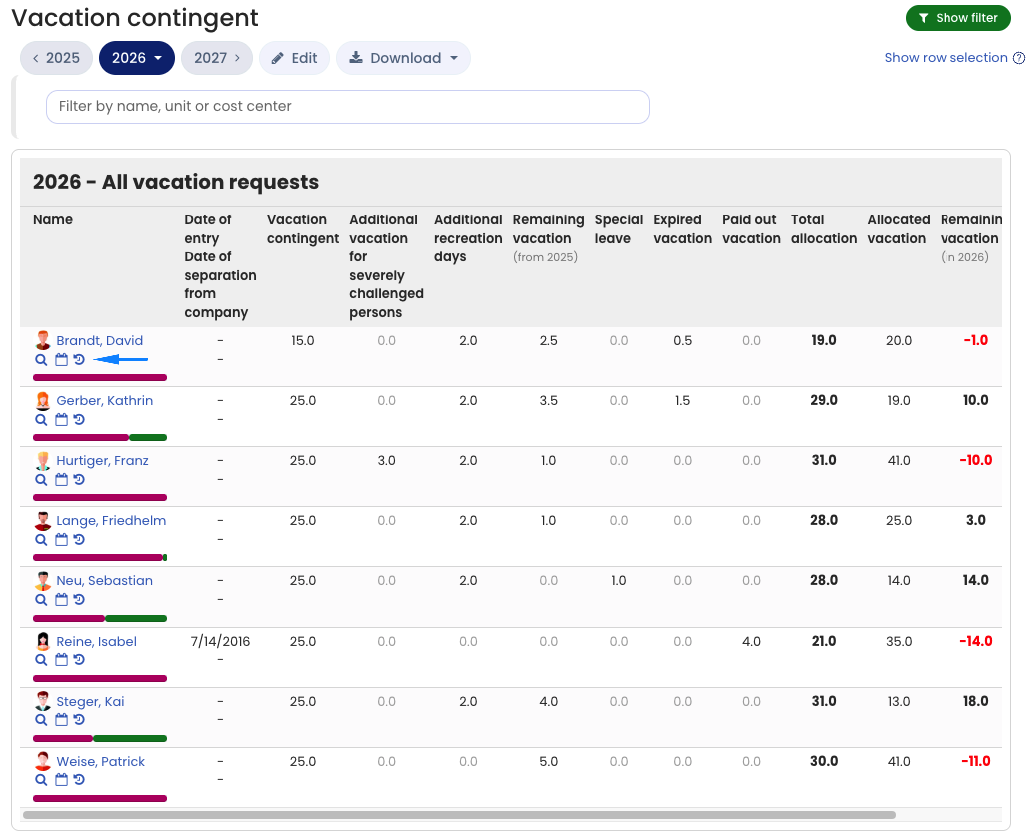
To open the change history of entitlement data and time balances as an Admin or Manager, sign in to your Timebutler user account and go to Employees > Absences > Vacation contingent. For the desired employee, click the icon with the clock and the arrow:
Open change history: Employee users
To open the change history of your own entitlement data and time balances as an Employee user, sign in to your Timebutler user account and click Leave account under Your leave on the left. Then click the Change history button.
Comments when making changes
An Admin can decide whether the user must enter a comment when editing entitlement data and time balances, or whether the comment is optional. An Admin can set this in Global settings.
- Sign in to Timebutler as an Admin.
- Go to Settings > More… > Global settings (Settings is at the bottom left; Global settings is at the top right).
- Check or change the option Comments when changing contingent values.