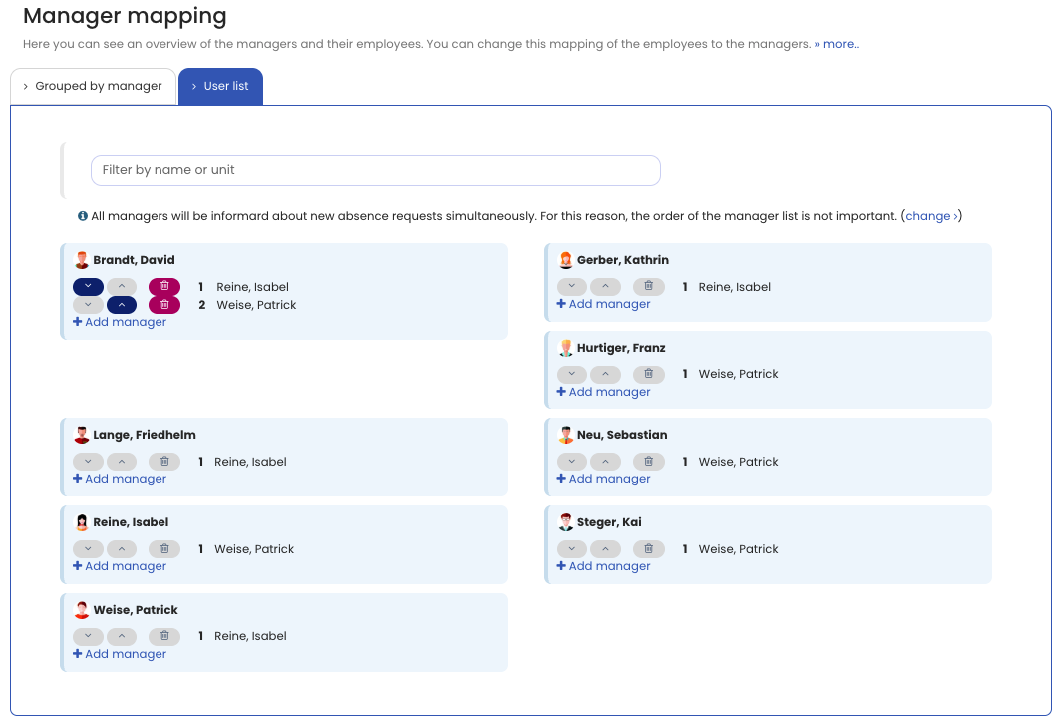
You can assign a supervisor for each user in Timebutler, or multiple supervisors. Supervisors thereby receive visibility permissions, editing permissions, and the right to approve employees’ requests. When an employee submits a vacation request or another absence entry requiring approval, the approval workflow starts automatically. The responsible supervisors are notified by email about the new request and can approve or reject it.
Edit supervisor assignment
To view or edit the assignment of employees to supervisors, log in to Timebutler as an admin and click Settings > Managers at the bottom left.
Managing director / Own supervisor
You must always assign at least one supervisor to every employee. Some employees have no supervisor, for example the managing director. In this case, simply set the managing director as their own supervisor. When the managing director submits a vacation request for themselves, Timebutler recognizes that they are their own supervisor. The approval workflow does not start; instead, the vacation request is immediately set to Approved.
Screenshot: Assign supervisors
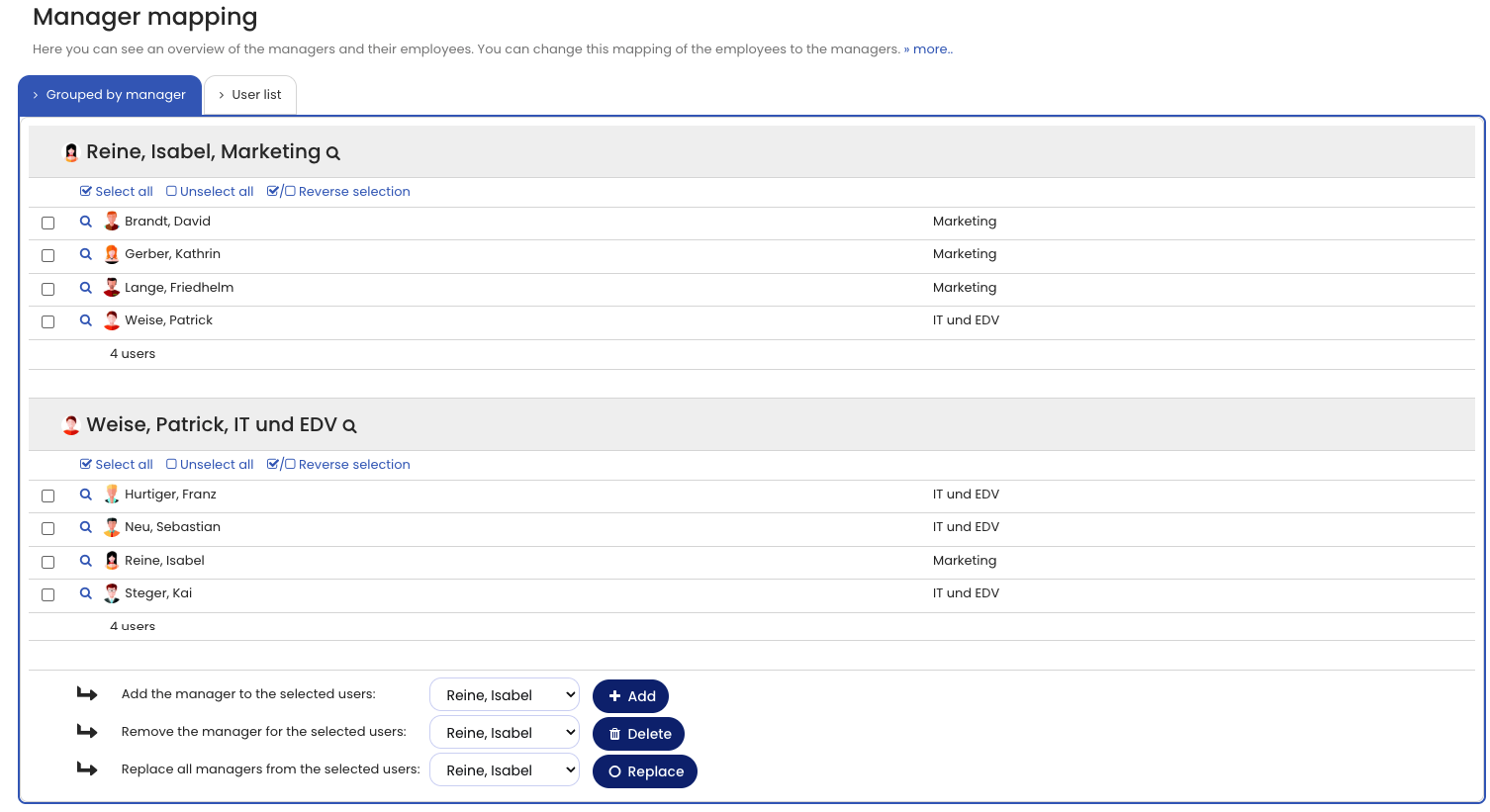
Screenshot: Assign multiple supervisors