You can set weekly workdays individually in Timebutler. However, you cannot configure irregular or alternating weekly workdays, for example “alternating by week Mon–Fri and Mon–Thu” or “Mon–Fri plus every 1st, 3rd, and 5th Saturday of the month”.
There are two reasons for this:
- If we offered this, we would have to support an enormous number of special cases, for example “Mon–Thu and every 3rd and 5th Saturday, except when Thursday is a public holiday, then also Friday, but not if colleague X works on a Friday”. That quickly becomes complicated and confusing.
- In practice, the schedule often differs from the plan anyway — for example when someone swaps their Friday shift with a colleague or wants to change the weekly Mon–Thu / Mon–Fri rhythm. The settings would have to be constantly updated, which is cumbersome.
Depending on whether you have time tracking activated, you have the following options.
Alternating weekly workdays with time tracking
Activate all workdays on which the employee could potentially work. To do this, sign in to Timebutler as an admin, click Settings > Working days at the bottom left, and then click the blue Edit button for the relevant employee.
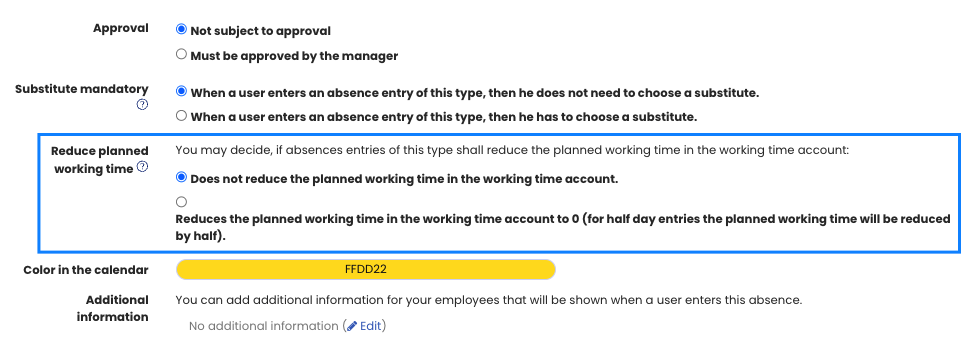
Now create a new absence type called “Non-working”. Sign in to Timebutler as an admin and click Settings > More… > Absence types. Click the Create new absence type button. Enter “Non-working” in the name field and set it so that only admins may enter this absence by disabling the two options Managers may enter this absence and Employees may enter this absence. Enable the option Reduces target working time and then click the blue Save button at the bottom.
Then create a recurring entry with the “Non-working” absence for the relevant employee on the weekdays they do not work (for example for the entire current year). Read here how to create a recurring entry.
That’s it. Although all weekdays count as workdays for this employee, the “Non-working” entries mark the relevant days as days off, and the system does not count them as workdays for vacation deduction or in the working time account.
Example
An employee alternates weekly between Monday to Friday and Tuesday to Friday, so they have every second Monday off. Activate the weekly workdays Monday to Friday and create a “Non-working” recurring entry for every second Monday from January to December.
This makes Monday a day off every other week, so the employee works Monday to Friday one week and then Tuesday to Friday the next, as desired.
Alternating weekly workdays without time tracking
Activate all workdays on which the employee could potentially work. To do this, sign in to Timebutler as an admin, click Settings > Workdays at the bottom left, and then click the blue Edit button for the relevant employee.
The employee then only needs to make sure that they enter vacation only on the days they would actually have to work; otherwise, too many vacation days will be deducted.
Example
An employee alternates weekly between Monday to Friday and Monday to Thursday, so they have every second Friday off. Activate the weekly workdays Monday to Friday.
If the employee wants to take two weeks of vacation, they must not submit a single vacation request covering both weeks, because that would deduct 2 × 5 = 10 vacation days.
Instead, they submit one vacation request from Monday to Friday (= 5 vacation days) and a second one from Monday to Thursday (= 4 days), so 9 vacation days are correctly deducted.
Screenshot: Setting “Absence reduces target working time”