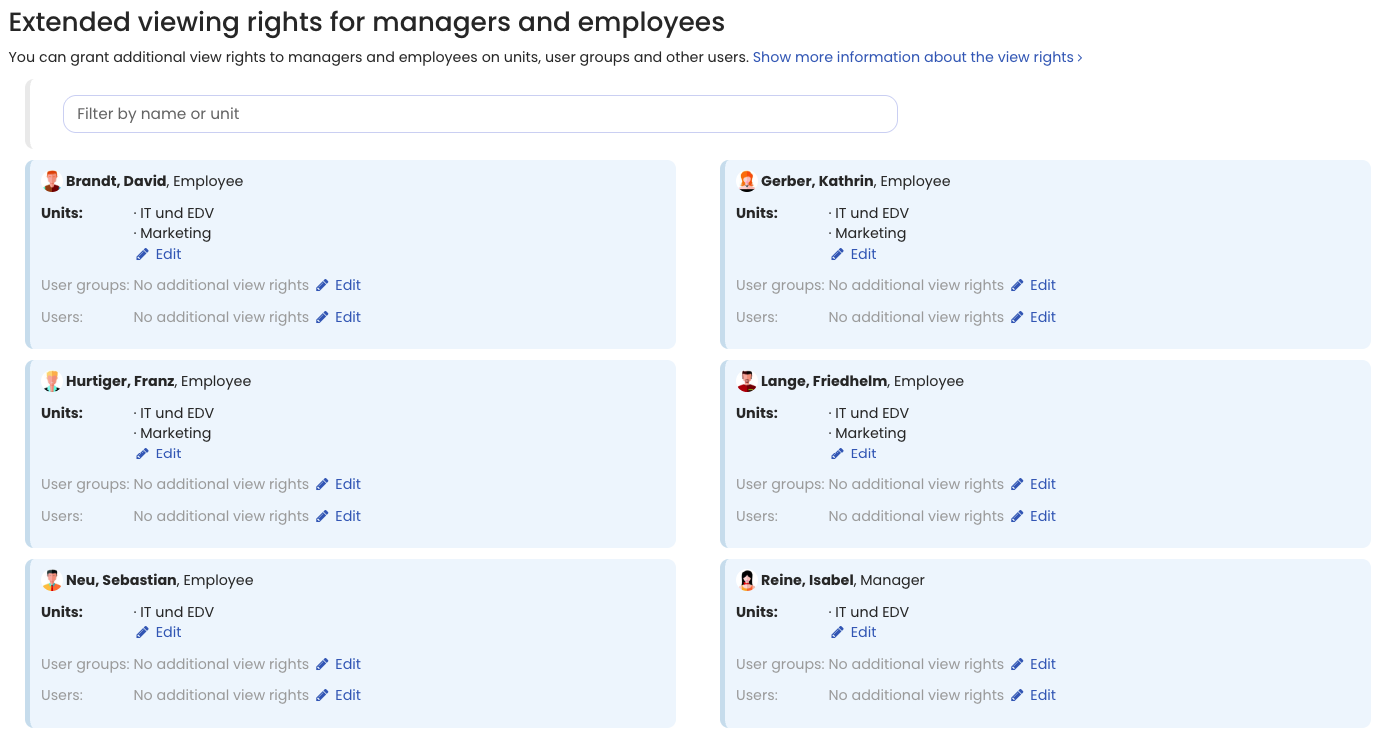
Depending on their user type, employees have different visibility permissions. An admin can extend these visibility permissions as follows:
Extend visibility permissions for departments, employees, or user groups
Admins have visibility permissions for all users and all absences and entries. Supervisors and employees, on the other hand, only have visibility permissions for employees with the same supervisor. You can extend visibility permissions individually for each supervisor and employee.
To do this, log in to Timebutler as an admin and click Settings > Viewing rights at the bottom left. Here you can grant each user extended visibility permissions for departments, individual employees, or user groups.
Visibility permissions for employees: by department or supervisor
An admin can set whether employee users may see colleagues with the same supervisor or the same department name. To do this, log in to Timebutler as an admin and click Settings > More… at the bottom left, then Global settings on the right. Now check or change the Employees see colleagues with the same supervisor or department option (at the bottom of the page).
Set visibility permissions individually in the user account
You can also adjust visibility permissions individually for specific employees directly in their user account. The following options are available:
- Default setting: may see colleagues according to the selection in Global settings (same supervisor or same department).
- May see colleagues who have the same supervisor, regardless of the department name.
- May see colleagues who have the same department name, regardless of the supervisor.
- May not see any other colleagues.
To change this setting in the user account, log in to Timebutler as an admin and click Employees > Employees > Overview at the top left, then click the green pencil icon (Edit) for the relevant employee. Change the Visibility permissions option.
Grant visibility permissions for all employees to all employees
In small companies, there is often a desire to grant all employees visibility of all colleagues. You can do this in just a few clicks. To do this, log in to Timebutler as an admin and click Settings > More… at the bottom left, then Global settings on the right. Now check or change the Visibility to all users option (at the bottom of the page).
You can view a user account’s visibility permissions in the detail view of the user account.
Screenshot: Set up extended visibility permissions