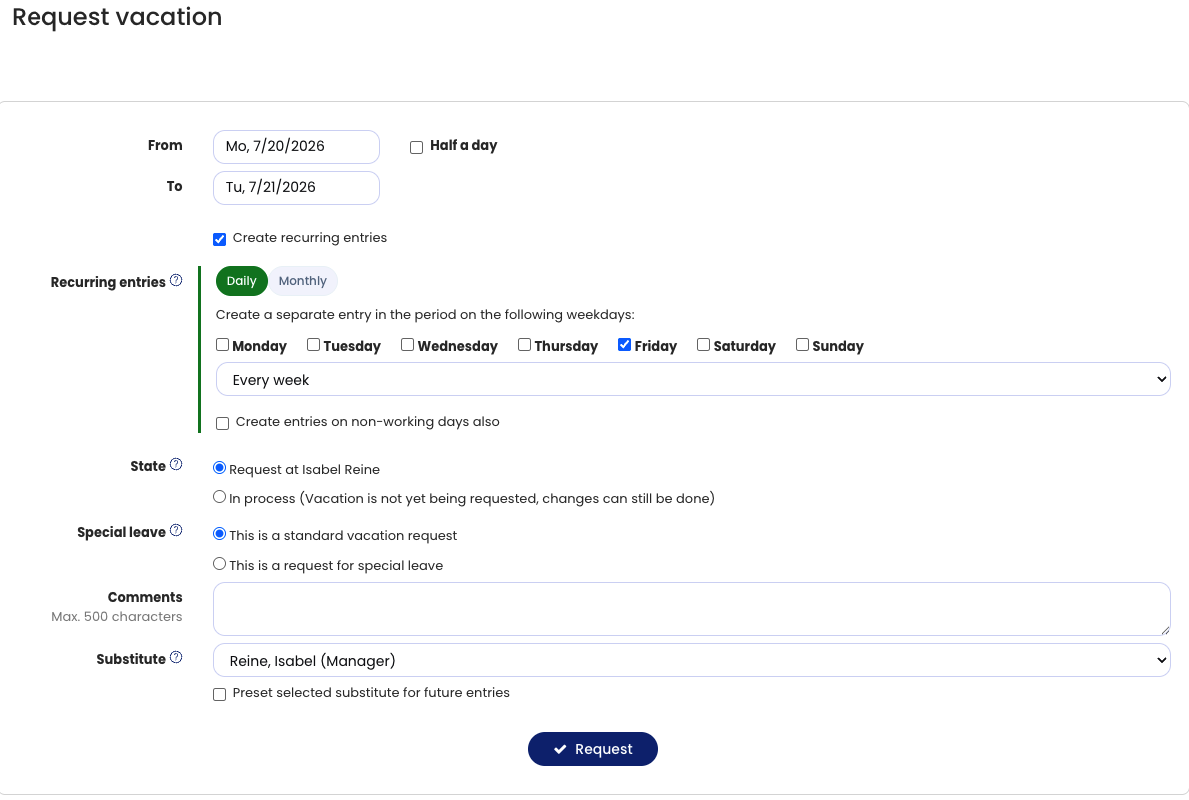
You can enter a recurring entry for vacation and other absences. For example, if you want to take vacation every Friday over the next two months, you don’t need to enter 8 individual vacation requests; you can enter a recurring entry.
Create a recurring entry
To enter a recurring entry for vacation, sign in to Timebutler and open the entry form for a vacation request (read here how to get to the entry form for entering a vacation request). In the entry form, enable the Create recurring entry option. Additional options for creating the recurring entry are then displayed.
Delete recurring entries
Employee users and managers receive the option to undo the recurring entries — i.e., delete them — immediately after entering them. If you don’t use this option, you can no longer delete the recurring entries as a whole; you can only delete each entry in the series individually.
Admins can delete entire series they created with one click via Undo actions. This option is available for a limited time after the recurring entries have been created. After that, even admins can only delete each entry in the series individually.