
If an admin has activated the time clock in the Time tracking settings, you can record working time via the virtual time clock with just a few clicks.
Virtual time clock in the bar
After you sign in to Timebutler, all pages show a “ 00:00” for the time clock on the left:

Start the time clock
To start the time clock, click the green start symbol directly.
Time clock running
In the bar on all pages, the time clock display is now green and shows that the time clock is running:

Time clock paused
To pause the time clock, click the time display in the bar and then click the Pause button in the time clock. In the bar, the time clock display appears orange to indicate that the time clock is paused.

Stop the time clock, save working time
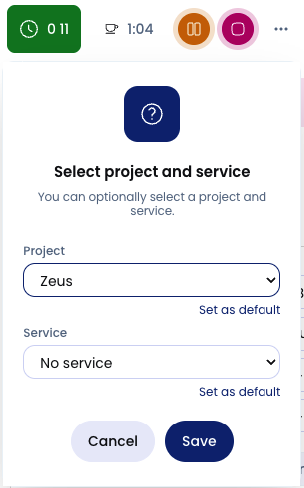
At the end of your working time, stop the clock and then click the three dots next to it to select the project and/or service in the time clock. Timebutler saves the working time entry, and the bar turns blue again with the “ 00:00” display.
Interruptions, signing out
When the time clock is running or you are on a break, you can sign out of Timebutler, shut down the laptop/PC, or go to a client appointment. Timebutler continues to track working time in the background.
When you sign back in to Timebutler later, it has continued tracking your working time, and you can stop the time clock to save the working time.
Forgot to start or stop the time clock?
Read here how to proceed if you forgot to start the time clock in the morning or stop the time clock in the afternoon.