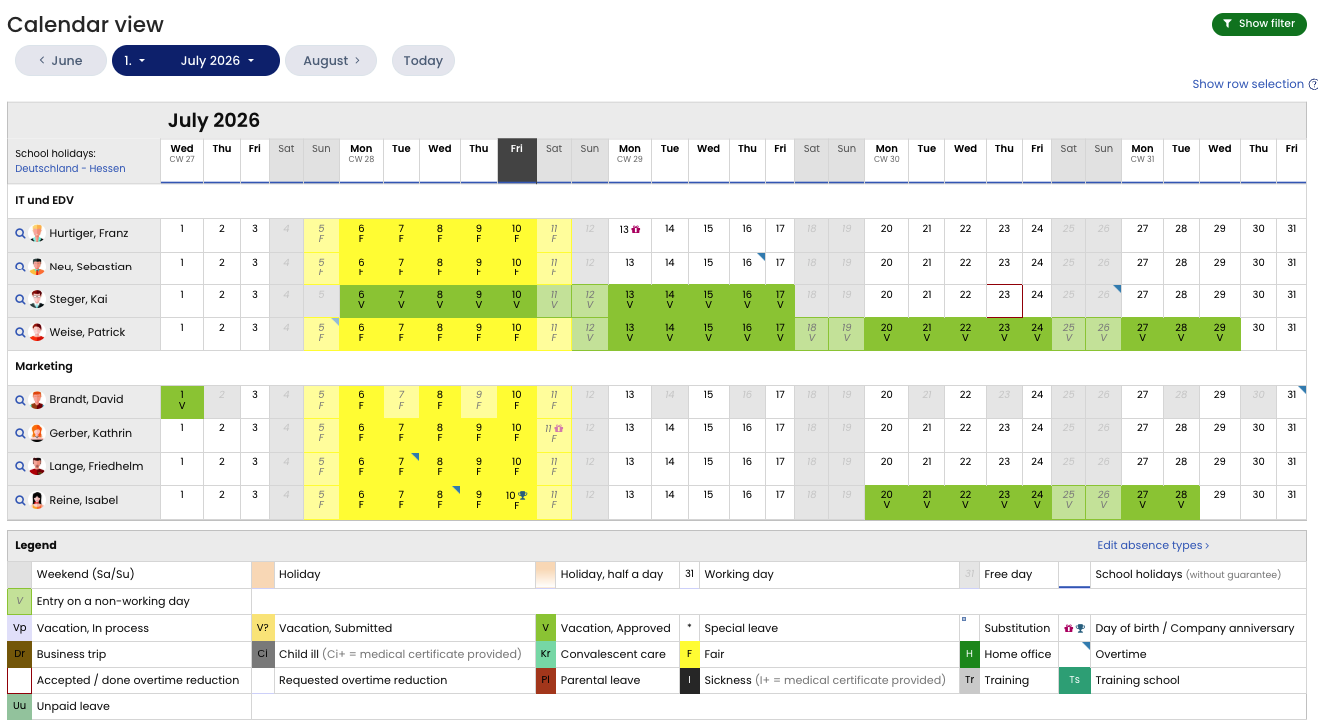
In the absences calendar view, you also see vacation requests. You can easily recognize each vacation request and absence entry by a colored bar.
Open the calendar view: Employee users
Employee users sign in to Timebutler and click Absences > Calendar view on the left. If the employee has visibility permissions for colleagues, they can open the team calendar by clicking Colleagues > Calendar view on the left.
Open the calendar view: Managers and admins
Open team calendar
The manager or admin signs in to Timebutler and clicks Employees > Absences > Calendar view at the top left to view the calendar for their own team or all employees. The calendar shows one month across multiple employees. Timebutler intentionally does not provide an annual view across multiple employees, because one screen cannot present that much information in a meaningful way.
Open your own calendar
The manager or admin signs in to Timebutler and clicks My data > Absences > Calendar view on the left.
Open a single employee’s annual calendar
The manager or admin signs in to Timebutler and clicks Employees > Employees > Annual overview at the top left, then clicks the desired employee’s name.