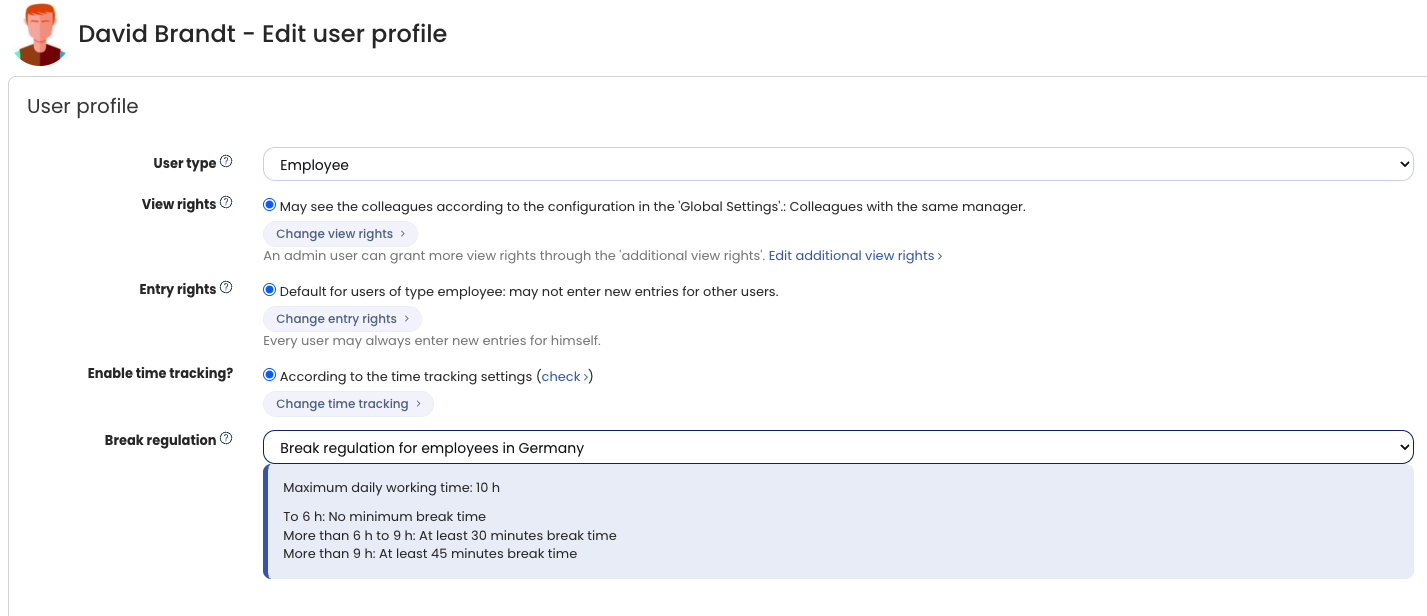
You can set a default break regulation that applies to all employees as long as you do not set anything different for individual employees.
You can set a different break regulation for individual employees, or disable it for them. This is useful, for example, if you have enabled the break regulation for employees and have vocational school students or apprentices for whom the break regulation for employees under 18 should apply.
Follow these steps:
Set the break regulation individually for one employee
Log in to Timebutler as an admin, click Employees at the top left, then Overview below the smaller Employees. In the row of the desired user account, click the green pencil icon (= Edit).
Change the Break regulation option and then click the blue Save button at the very bottom of the page.
Change the break regulation for multiple employees
If you want to change the break regulation for multiple employees, changing each user account individually would be time-consuming. Instead, you can edit many employees at once with the bulk change of working time models.
Note: The example above refers to youth labour protection rules for employees under 18 (in Germany, the Jugendarbeitsschutzgesetz), which set stricter break and working-time limits for vocational school students and apprentices. These age-based break rules are country-specific; Timebutler lets you assign a different break regulation per employee regardless of location, so you can adapt it to the rules that apply in your country.