Timebutler has a substitute feature so that a substitute can approve requests while a manager is absent. Your managers probably already use this feature intuitively, as follows:
When a manager (or admin) enters vacation or sickness for themselves, they can also select a substitute. If, during the manager’s absence, one of their employees submits a vacation request (or another request that requires approval), Timebutler detects that the manager is absent and that a substitute was selected. The substitute then additionally receives an email with the request information and two buttons to approve or reject it as a substitute.
The substitute does not get full visibility permissions on the manager’s employees during the manager’s absence. Instead, they receive email notifications and can approve or reject individual requests directly from the email. The manager still receives the email with the employee’s request, even during their vacation or sickness.
You can find more information about the substitute feature by opening the input form for a new request and clicking the question mark icon next to the word Substitute.
Disable the substitute feature
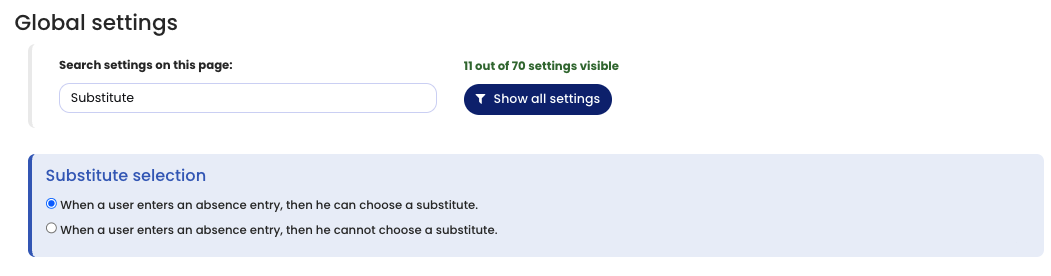
Your company may have the substitute feature disabled. An admin can configure whether the substitute feature described above is active or not. Sign in to Timebutler as an admin and click Settings > More… > Global settings. Review or change the option Substitute selection.
Substitute selection required depending on absence type
You can configure individually for each absence type whether a substitute must be selected or not.
Useful notes about the substitute feature
- The substitute selection also has a convenience option. In many teams, there is one person who often takes over as substitute. When entering an absence, you can activate an option in the substitute selection so that the chosen substitute is automatically preselected for future entries. This removes the need to select a substitute every time and ensures the substitute is preset.
- If you want to see who approved a request, open the request’s detail view. The Processing history box shows, among other things, who approved the request, with a timestamp.
- If a manager will be absent for an extended period — for example due to foreseeable long-term sickness or parental leave — you should temporarily assign their employees to a different manager. In that case, sign in to Timebutler as an admin, click Settings > Managers at the bottom left, and assign the employees of the absent manager to another manager. After the manager returns, you can assign the employees back.
Activate substitute selection
The substitute selection may be completely disabled. If that is the case, no substitute can be selected, and the substitute feature is therefore not available.Check whether substitute selection is enabled. To do this, sign in to Timebutler with an admin user and click Settings > More… > Global settings. There you will find the option Offer substitute selection.
Screenshot: Offer substitute selection