Timebutler provides an interface (API V1) with many features, including:
- Retrieve employee data
- Retrieve employees’ absence entries, working times, vacation entitlements, and working days
- Control the time clock for time tracking or import time entries
- Connect third-party hardware time recording terminals
- Download and change projects and categories for time tracking
- Query personnel file data and salary data
- and more
This lets you automatically read out data from Timebutler and, for example, import it into third-party software such as Datev, SAP, or your ERP, generate emails, send notifications to employees, and so on. To query the interface, you need a program that calls the interface. An experienced developer can create a program within a few minutes that queries the standardized Timebutler interface.
An admin can enable or disable the Timebutler interface. You can enable or disable the interface for querying personnel file and salary data separately, and independently enable the interface for all other data. Access requires an individual API token. An admin user can generate the API token. There is one API token for querying personnel file and salary data, and one API token for the remaining API endpoints. This lets you manage access to the two data types separately and grant access separately.
Enable or disable the interface
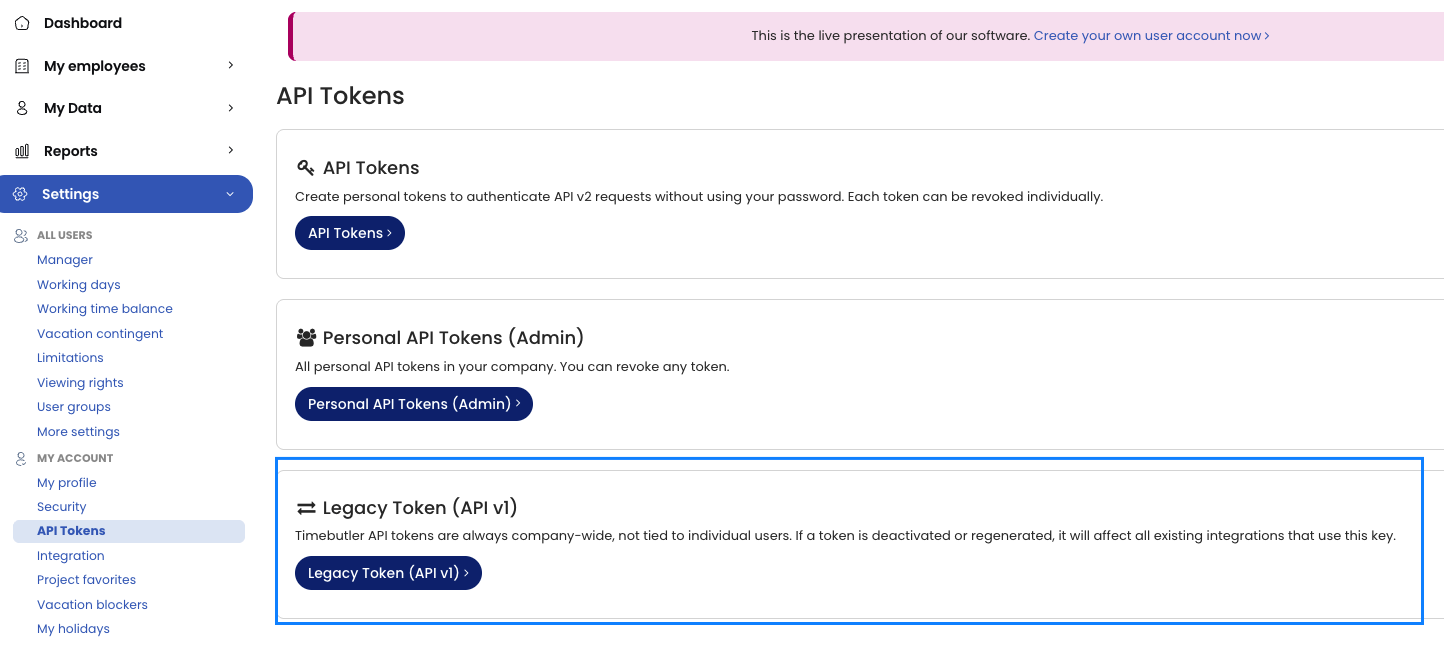
To enable or disable the interface, log in to Timebutler as an admin and click Settings > My Account > API Tokens on the left. There, under Legacy token (API v1), you can enable or disable the two interfaces; the two API tokens are also displayed there.
Your developer needs these two API tokens to query the interface. Your developer also needs the technical documentation for the API.
An admin can generate a new API token at any time. This invalidates the old API token, so the old API token no longer grants access to the interface and data.
Screenshot: Enable the API