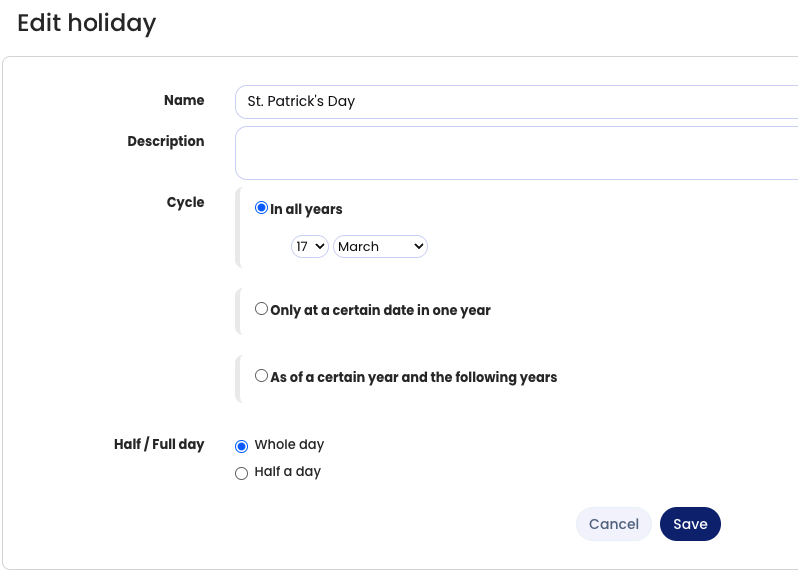
You can create custom public holidays and use them in your holiday calendars.
Create a New Public Holiday
- Log in to Timebutler as an Admin.
- Go to Settings > More… > Holidays.
- Click Create new holiday.
Timebutler already provides a list of public holidays, including automatically calculated variable holidays such as:
- Easter Monday
- Good Friday
These are calculated automatically for each year.
If a required holiday is not available (for example, country-specific holidays), you can create it manually.
Configure the Holiday
When creating a new public holiday, you can define:
- The holiday applies only in a specific year
- The holiday applies every year on the same date
- The holiday applies every year on the same date starting from a specific year
Effect on Employees
New public holidays do not automatically apply to employees.
Public holidays are not assigned directly to employees. Instead, employees are assigned Holiday calendars, which are collections of multiple public holidays.
Assign Holidays via Holiday Calendars
To make a public holiday effective for employees:
- Add the new holiday to a holiday calendar together with all other relevant holidays
- Assign the holiday calendar to the desired employees
You can:
- Create a new holiday calendar, or
- Add the holiday to an existing holiday calendar
For more details, see Add company-specific holidays