
With the break regulations, you define the minimum breaks for certain working times and the maximum daily working time.
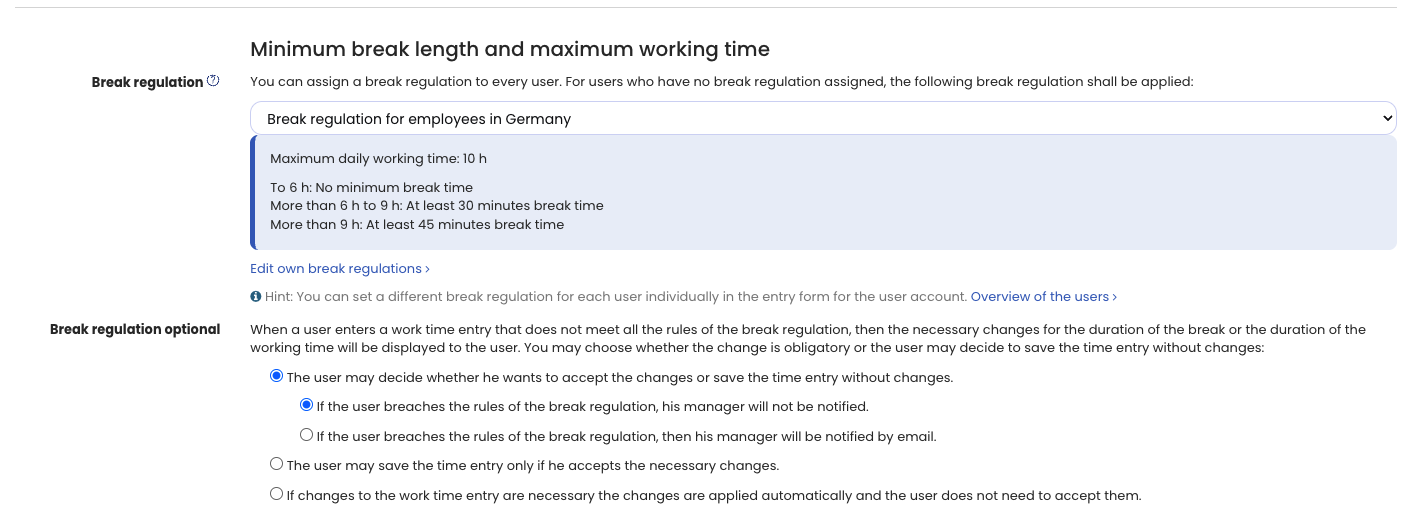
As an admin, you define which choices users have for the break regulation. To do this, log in to Timebutler as an admin and click Settings > More… at the bottom left, then Time tracking on the right.
Here you find the Choice for the break regulation setting with the following options.
When a user records a time entry that violates the requirements of the break regulation that applies to them, Timebutler shows the following depending on the Choice for the break regulation setting:
1) Allow choice
Option: Users can choose whether to accept the changes to the time entry or save the time entry without changes.
Timebutler shows a warning message and suggests an adjustment to the working time to meet the break regulation requirements. Users can either accept the necessary adjustment and let Timebutler change the entry automatically, or decline the adjustment; Timebutler then saves the time entry despite the violation of the break regulation requirements.
2) Adjustments must be confirmed
Option: Users can only save the time entry if they accept the proposed changes.
Timebutler shows an error message and suggests an adjustment to the working time to meet the break regulation requirements. Users must accept the change to save the time entry. If they decline the change, Timebutler does not save the time entry.
3) Apply adjustments automatically
Option: If changes to the time entry are necessary, Timebutler applies and saves them automatically. Users do not have to confirm the changes.
Timebutler does not show a warning or error message, but adjusts the time entry automatically to meet the break regulation requirements. Afterwards, Timebutler only informs users about the automatic change.
Setting applies to all employees The setting for the choice for the break regulation applies equally to all employees, and you cannot set it differently per employee.
When a user records a time entry that does not meet the break regulation, Timebutler displays a message: for the first two options it shows the warning or error together with the suggested adjustment to the time entry, so the user can accept or decline it before saving.