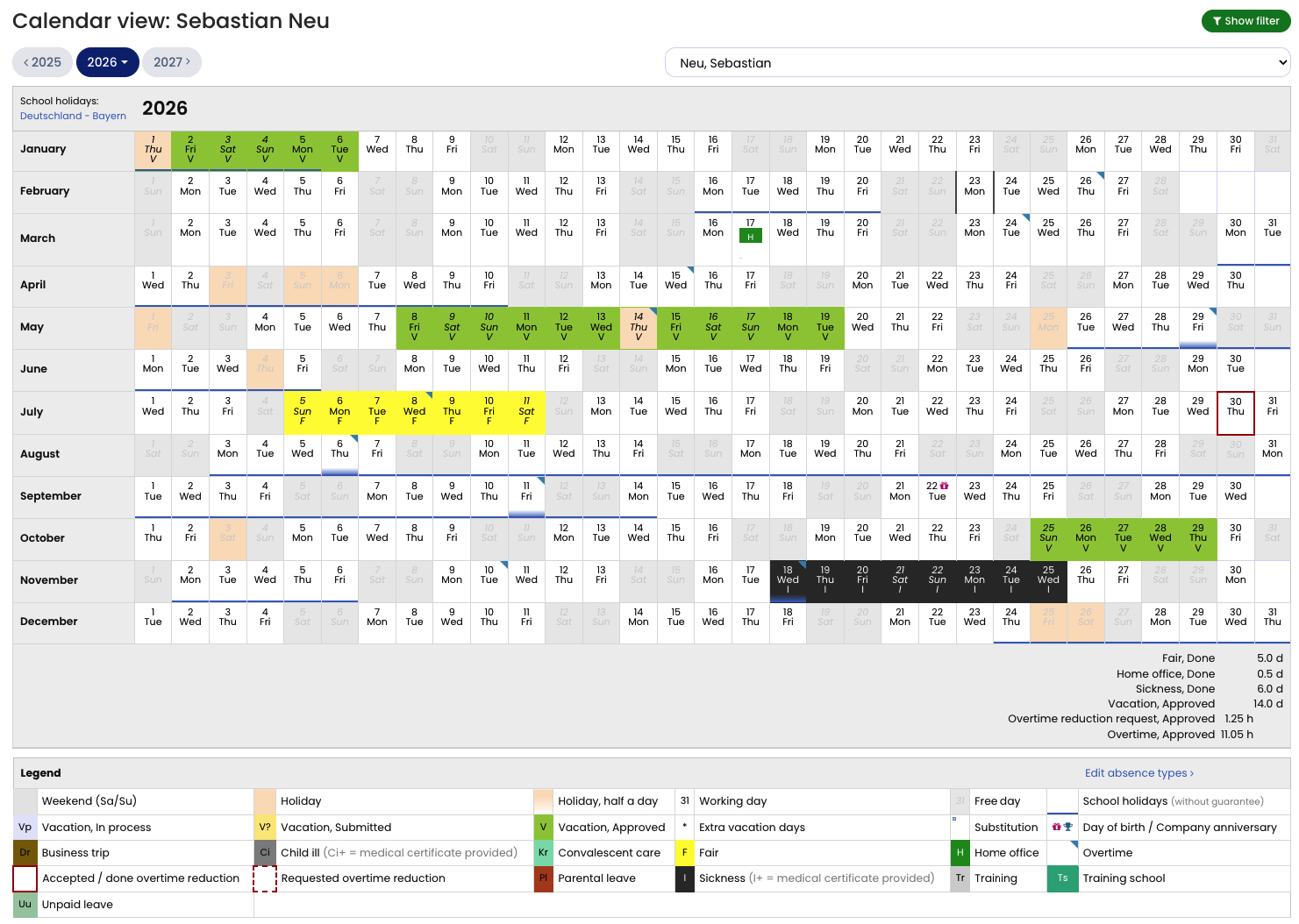
In the calendar view for absences, both absence entries and vacation requests are displayed.
Each vacation request and absence entry is clearly visible as a colored bar in the calendar.
Year Calendar: Employee Users
- Log in to Timebutler as an employee user.
- Click Absences > Calendar view in the left-hand navigation.
Year Calendar: Supervisors and Admins
Opening the Year Calendar of an Employee
- Log in to Timebutler as a supervisor or admin.
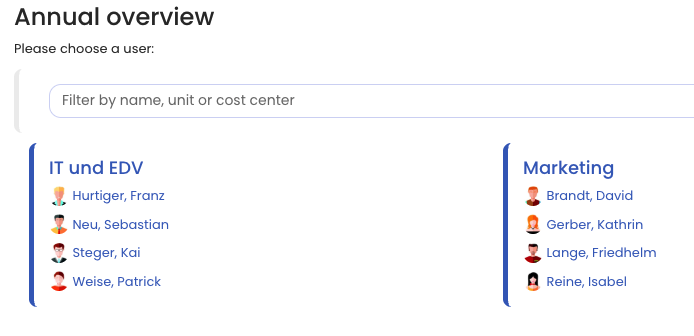
- Click Employees > Employees > Annual overview in the top-left navigation.
Screenshot: Selecting the employee to display the annual calendar
Opening Your Own Calendar
Supervisors and admins can also open their own calendar view.
- Log in to Timebutler.
- Click My data > Absences > Calendar view in the left-hand navigation.
Year Calendar Across Multiple Employees
A year calendar view across multiple employees is intentionally not available. Displaying that amount of information for multiple employees in a yearly format would not be meaningful on a single screen.
Screenshot: Employee annual calendar