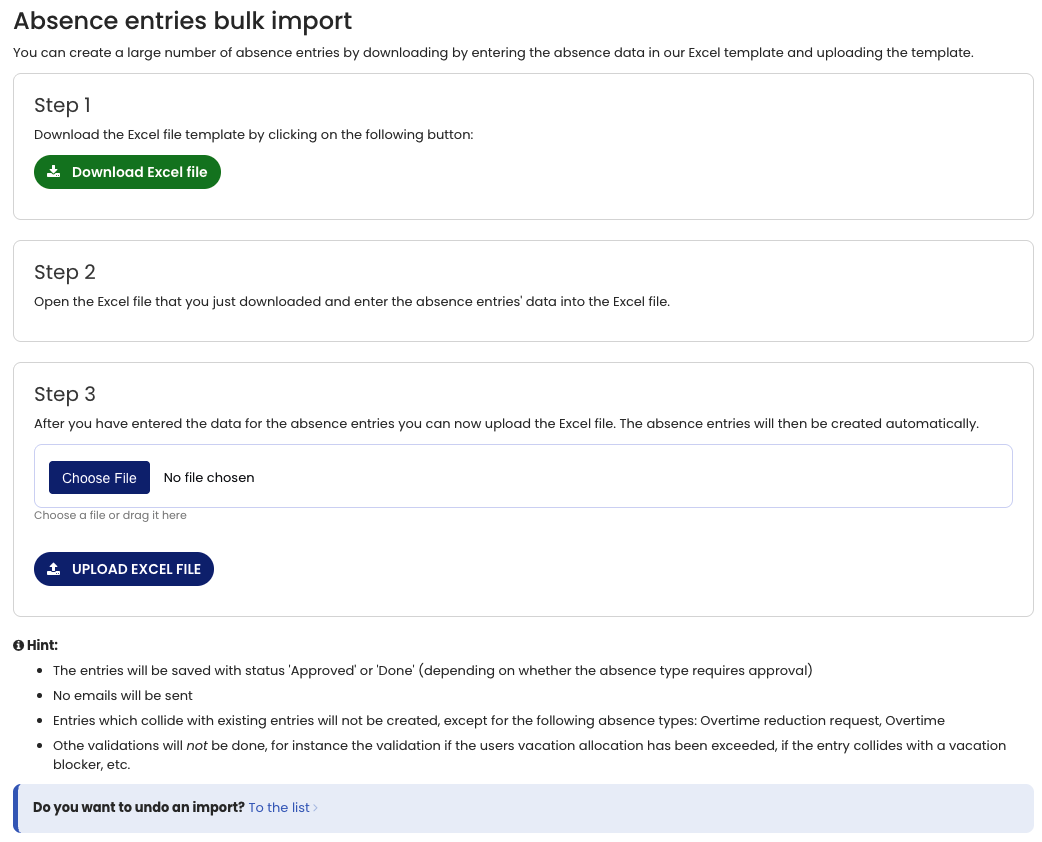
You can import a large number of leave requests and absence entries via Excel file upload. Especially during the initial setup of Timebutler, this gives you a convenient way to import dozens or hundreds of leave requests and other absence entries.
Perform bulk import
Log in to Timebutler as an admin and click “Settings > More Settings” in the bottom left, then scroll down to “Absence entries bulk import” on the right. Alternatively, you can also search for it.
In the first step, you can download the Excel file. It contains all columns required for specifying absences. Fill in the Excel file, or export the data from a third-party system and paste it into the Excel file.
In the second step, upload the completed Excel file and import a large number of absence entries with a single click.
If you want to import more absence entries than there are rows in the Excel file, simply download the Excel file multiple times, fill it multiple times, and upload it multiple times.
Undo bulk import
Read here how to undo the bulk import of absences.
Screenshot: Bulk import of absence entries