In the detail view of a time entry, the Edit history section shows who entered, changed, approved, rejected, etc., the entry, and when.
You open the detail view of a time entry as follows:
Employee users
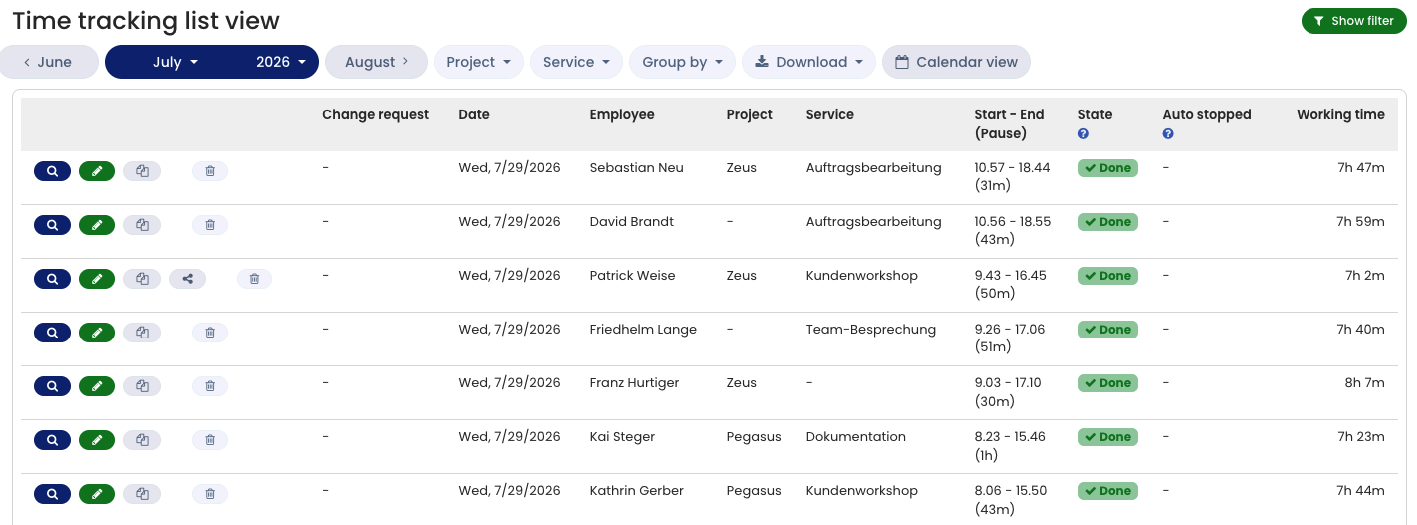
Log in to your Timebutler user account and click Time tracking > List view on the left. For the desired entry, click the blue magnifying glass icon to open the detail view.
Managers and admins
Log in to your Timebutler user account and click Employees > Time tracking > List view at the top left. For the desired entry, click the blue magnifying glass icon to open the detail view.
Special case: deleted entries
The list view does not show deleted time entries. However, Timebutler also logs deleted time entries and records who deleted the entry and when.
Read here how to view deleted time entries.
View and download break start and end times
If break time recording is enabled, the detailed break times for a time entry also appear in the edit history in the detail view.
You can also retrieve and download this information for multiple time entries. Read here how to retrieve the break times for multiple time entries.
Distinguishing time clock and entry form
The edit history shows how the time entry was created: recorded via the time clock or the time recording terminal, or entered manually via the entry form. If the edit history shows Recorded by…, the entry comes from the time clock in the user account or from the time recording terminal. If it shows Entered by…, the entry comes from the entry form.
You cannot tell whether recording happened via the time clock in the user account or via the time recording terminal on a tablet. An entry can, for example, be started at the time recording terminal on a tablet, paused on a phone, and stopped on a laptop — so it comes from both the time clock and the time recording terminal.
Edit history of time balances Timebutler also logs changes to time balances (working time balance at the start of time tracking, carryover of overtime balances into the next year) in the edit history of entitlement data.