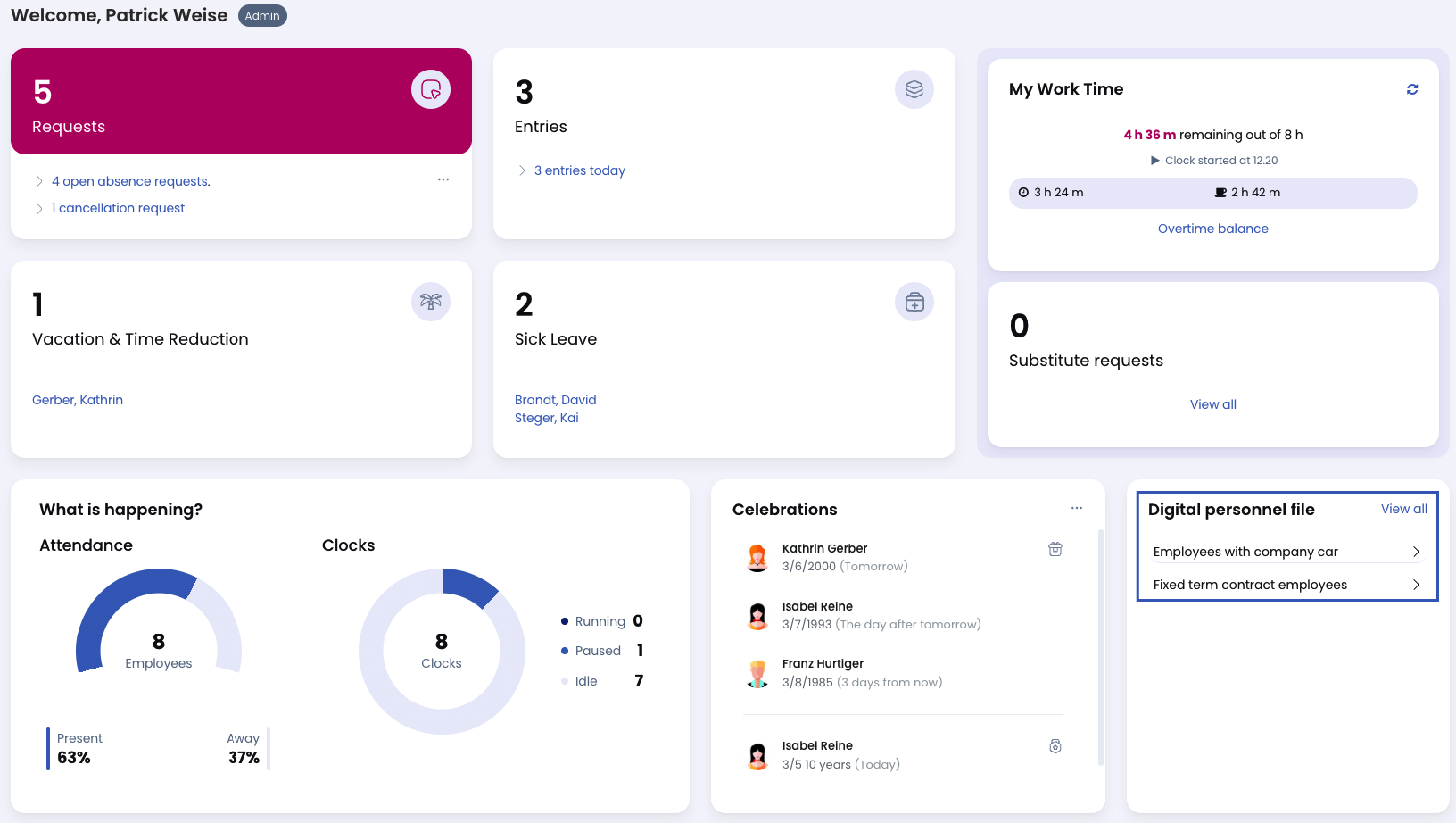
An Admin can save searches for evaluating the personnel file. Saved searches can be marked as favorites.
Favorites are displayed on the dashboard (the page shown after logging in). This allows you to start an analysis directly from the dashboard with one click, without opening the overview of saved searches.
Save or Modify a Favorite
Save a Search as a Favorite
When saving a search, activate the option Save as favorite to store it as a favorite.
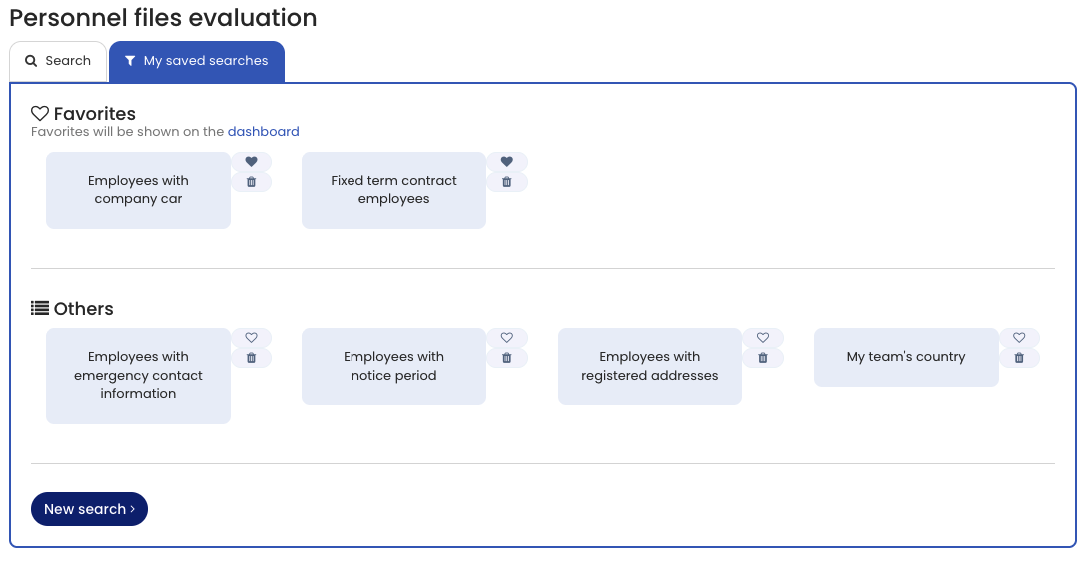
Add or Remove an Existing Favorite
- Open the overview of saved searches.
- Click the heart icon next to the desired search.
Clicking the heart icon again removes the search from your favorites.
Screenshot
Display Favorites on the Dashboard
Hide Saved Searches on the Dashboard
If you do not want saved searches to appear on the dashboard:
- Click the cross icon next to the saved searches section on the dashboard.
Show Saved Searches on the Dashboard
If you previously hid saved searches and want to display them again:
- Log in to your Timebutler user account.
- Go to Settings > Your user account.
- In the Your personal settings section, click Edit.
- Activate the option to display saved searches on the dashboard.
Screenshot